
Stocktaking
Stocktaking without paper lists: one stocktake for the whole organization, split across several people. Everyone counts at the same time, the progress comes together live, and at the end there is a report that holds up for the audit too.
Included from the Pro plan — pricing · Discover stocktaking in Mango.
At a glance
Section titled “At a glance”- Count only what counts — you can leave out low-value, recently moved or recently confirmed items.
- Split up the areas — assign buildings, floors or rooms to people. Everyone sees their part as a task.
- Count by scan — with your phone, room by room; every scan ticks off an item.
- Count the case, confirm the contents — packed containers with one tap.
- Report for the audit — PDF with cut-off date, result per location and signature fields; plus CSV and Excel.
Running a stocktake
Section titled “Running a stocktake”-
Start. “New stocktake” takes you through three steps: Basics — the name, and who counts all the areas you don’t hand out individually. Area — the whole organization or one location. Exceptions — what doesn’t need counting, such as low-value or recently moved items; the number at the top shows how many items are left to count as you go. On start, Mango records the expected stock; that day is the cut-off date.
-
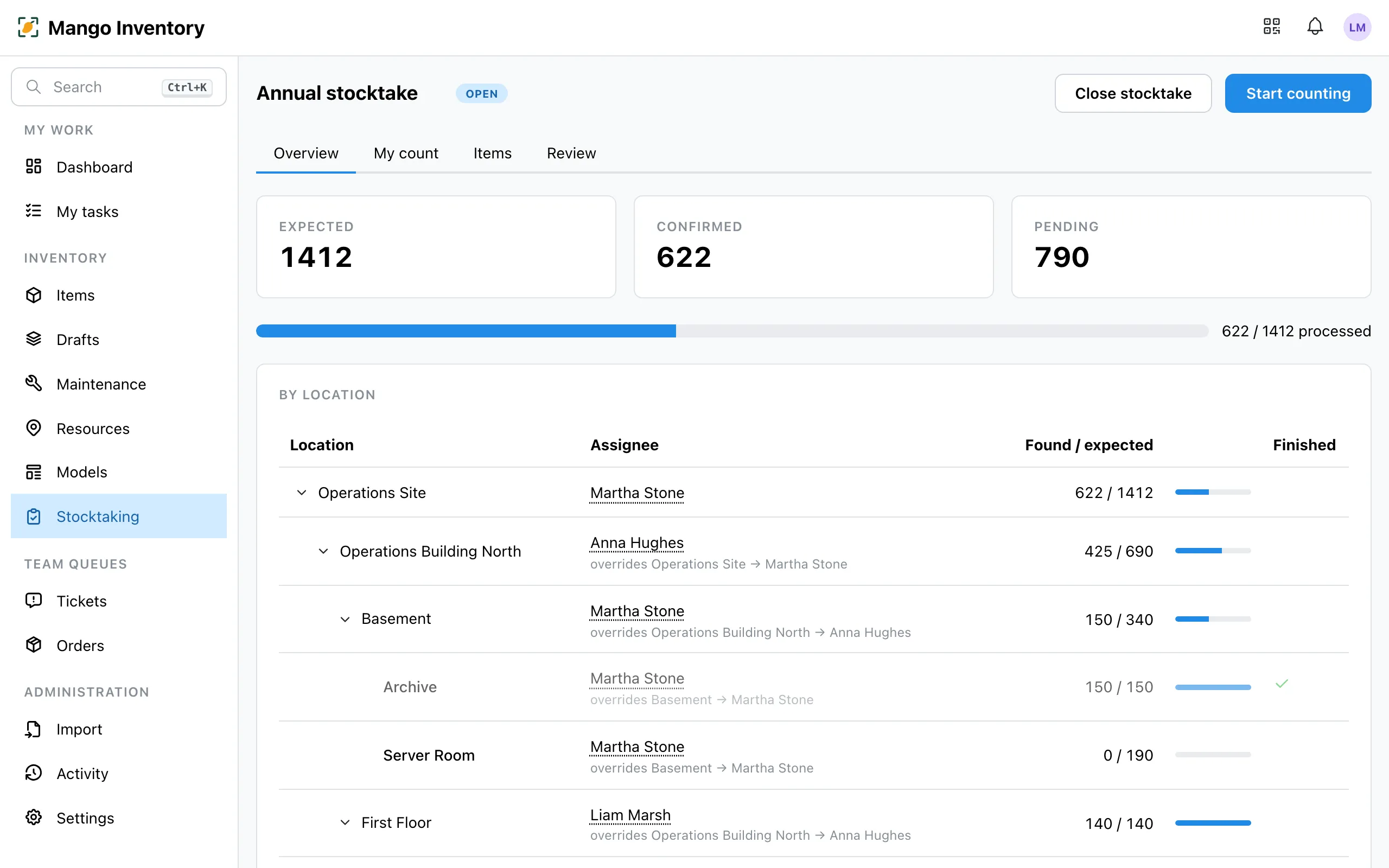
Split up the areas. The overview shows all locations as a tree, in walking order. Assign a building, a floor or a room to a person; the rooms below go along. Whoever gets an area is notified and sees the stocktake under My tasks.
-
Count. In the mobile app, your task shows your locations in walking order, with the expected items in them. “Scan item” opens the camera; every scan confirms its item. Mark what is missing as “Not found”. A finished location gets a check mark and moves to the bottom.
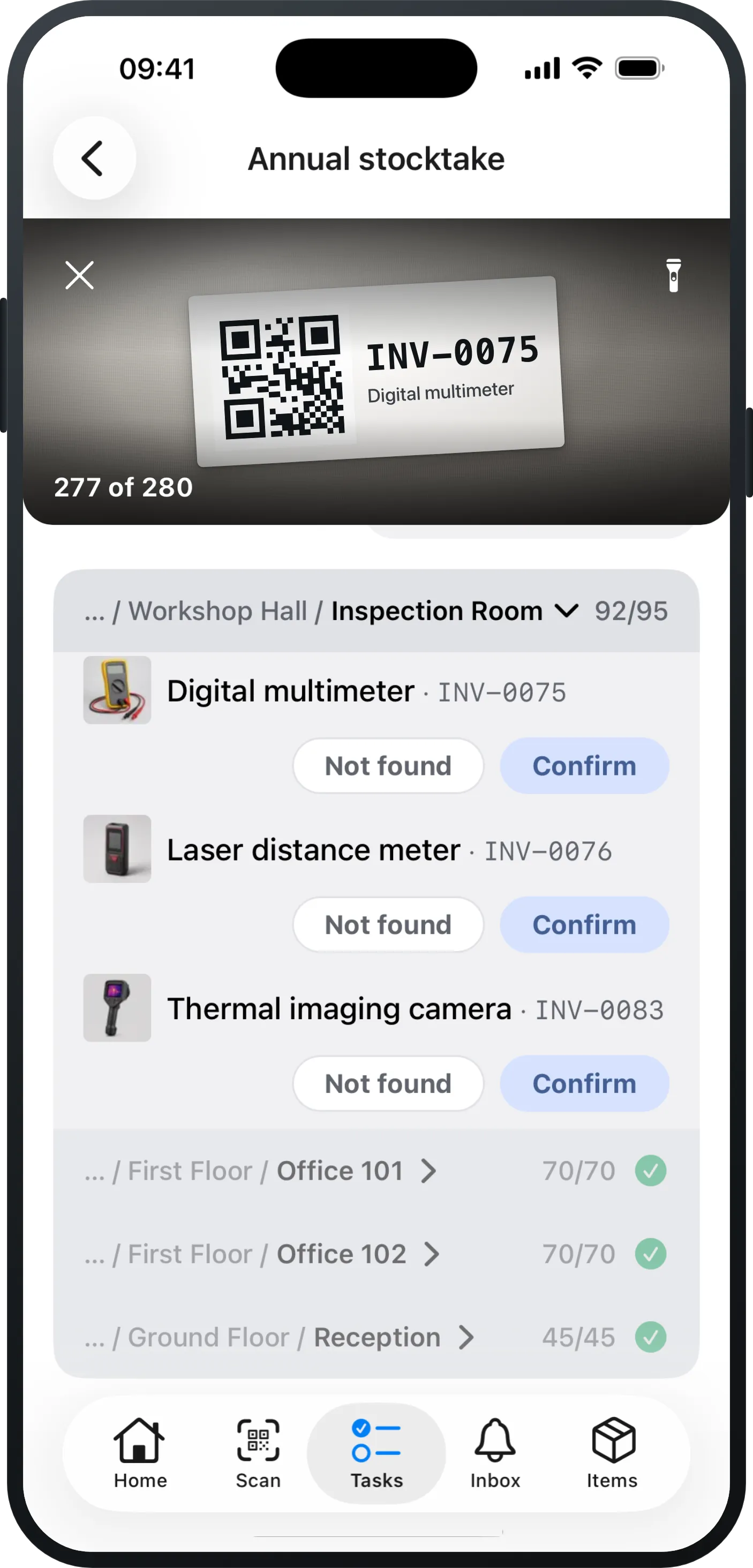
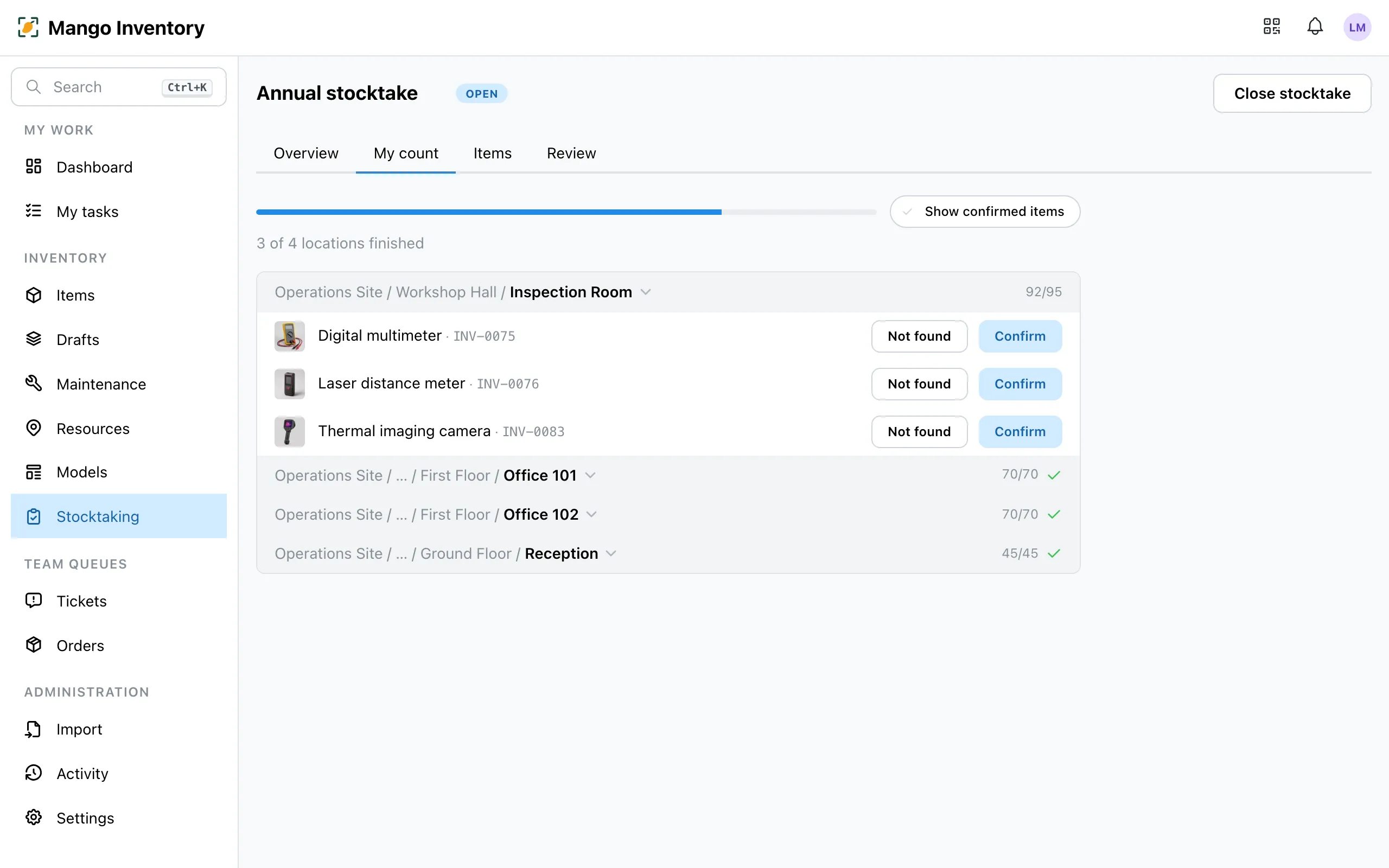
Room by room: confirm, scan, tick off. At the computer, the “My count” tab shows the same work, with a handheld scanner too. Quantity items are counted as a quantity.
-
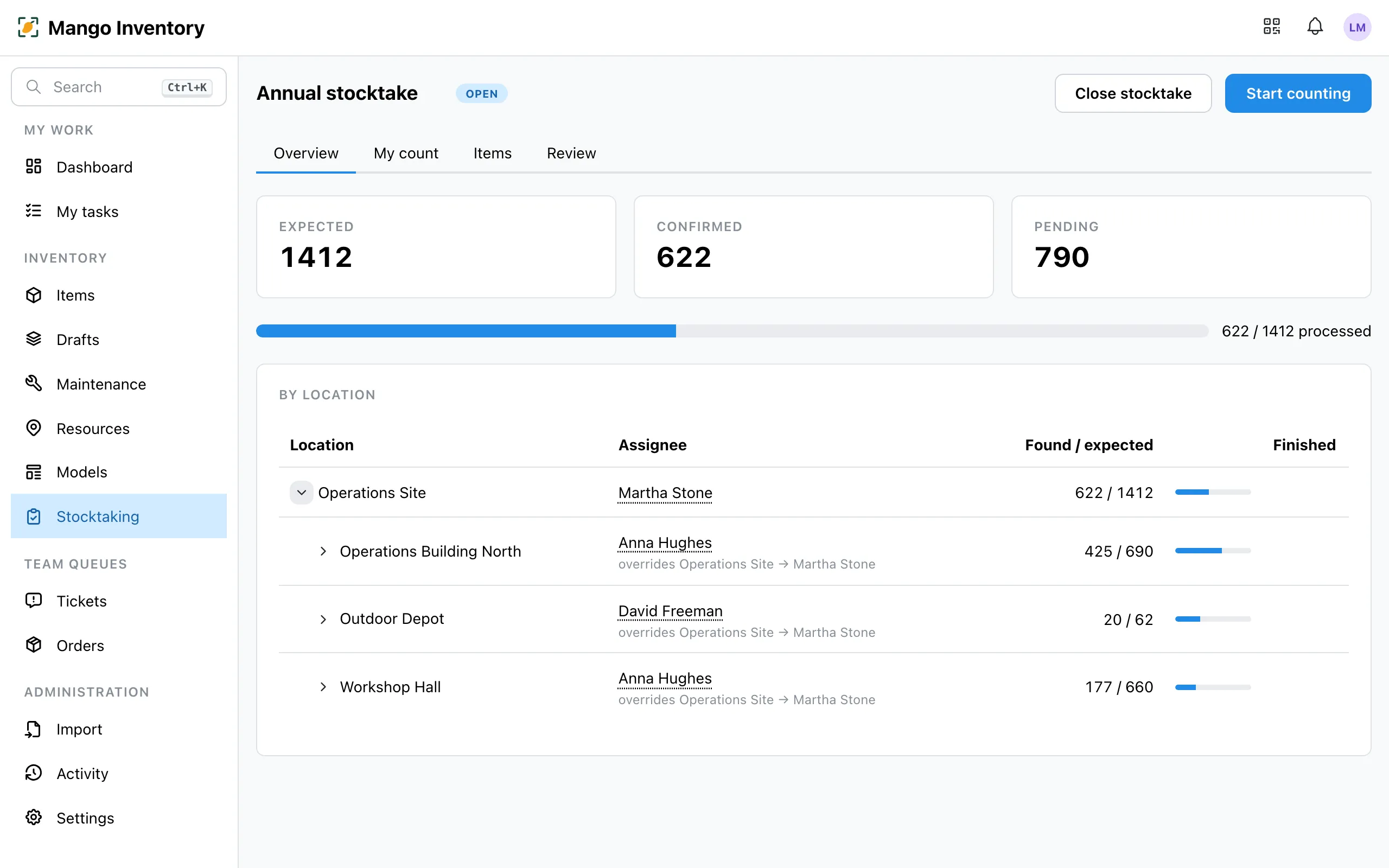
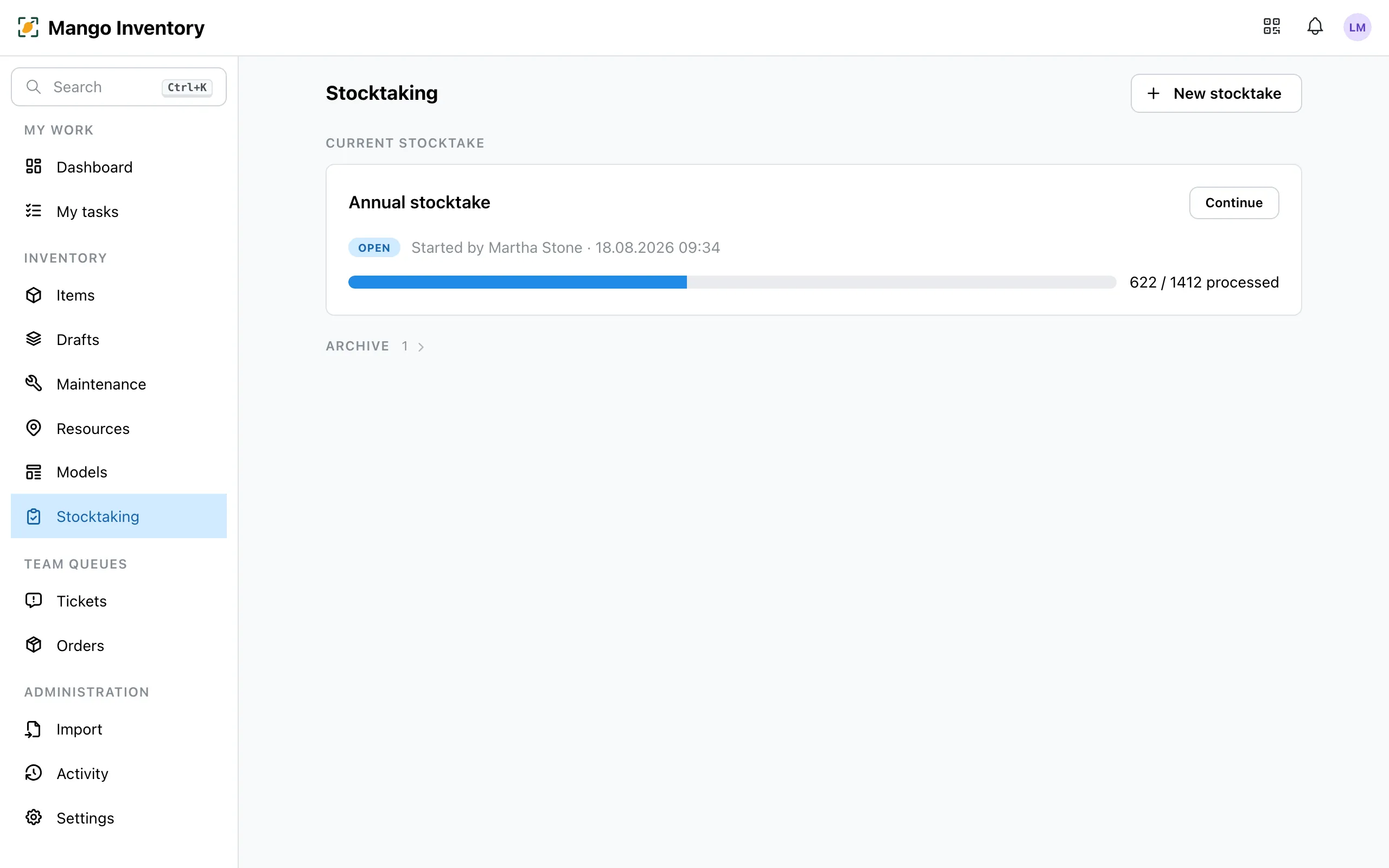
Follow the progress. The overview shows live how far each location and each person has got.
-
Close. “Close stocktake” first shows what is still open. After that the report is frozen and kept as evidence.
Counting containers
Section titled “Counting containers”If tools sit in a container, the case is enough: after the scan, the app offers, for example, “Confirm all 12 items”. Whoever prefers to open the case keeps counting one by one. The report keeps visible what was confirmed through a container.
The results
Section titled “The results”Every item ends with a clear result:
- Confirmed — scanned or ticked off.
- Not found — with the name and time of the person who searched.
- Reconciled — someone moved it in the app during the stocktake (in the PDF: “Reconciled in the system”).
The PDF report shows the results location by location, with cut-off date, method, discrepancies in the appendix and signature fields. You can also export as CSV or Excel.
Review
Section titled “Review”The “Review” tab collects everything marked as “Not found”.
- Found it after all? As long as the stocktake is running, a scan is enough — or “Undo not found”.
- Really gone? “Mark lost” sets the status, with a reference to the stocktake. This works after closing too.