Item models
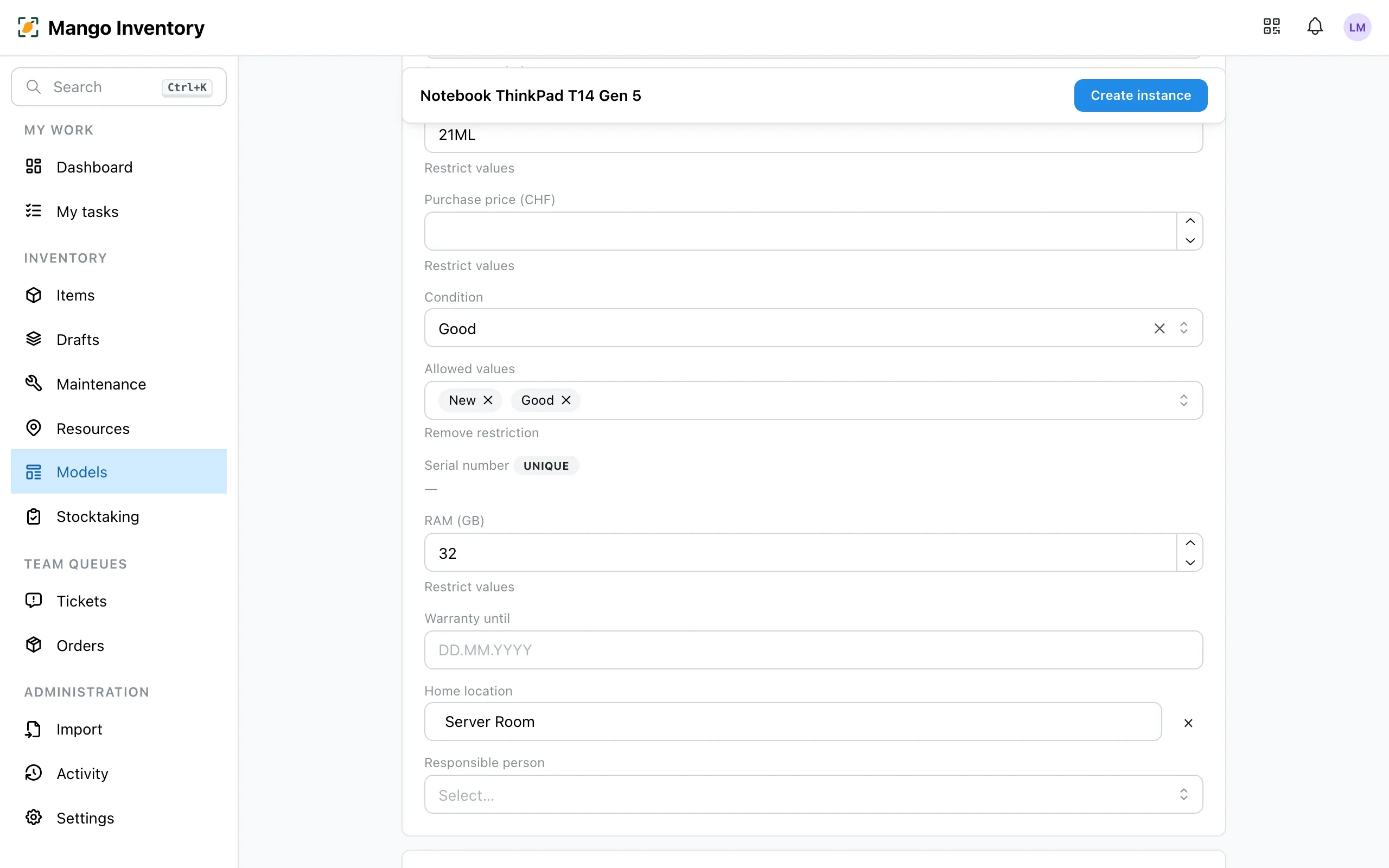
36 identical laptops, 20 cordless drills: an item model (e.g. “MacBook Air 13” M4”) describes once what they all share — name, category, manufacturer, storage. Every device stays its own item with its own label, location and history — in the app it is called an instance of the model. In the app you find this area under “Models”.
At a glance
Section titled “At a glance”- Describe once, up to date everywhere — change something on the model, and all devices follow.
- Capture fast — on a new device all values are already filled in; what’s left is serial number and location.
- Exceptions allowed — a device can have its own value without disturbing the others.
- Consistent details — per field you decide which values are allowed.
Creating a model
Section titled “Creating a model”-
Under “Models” → “New model”: set the name and category, optionally a photo. The category decides which fields the devices carry.
-
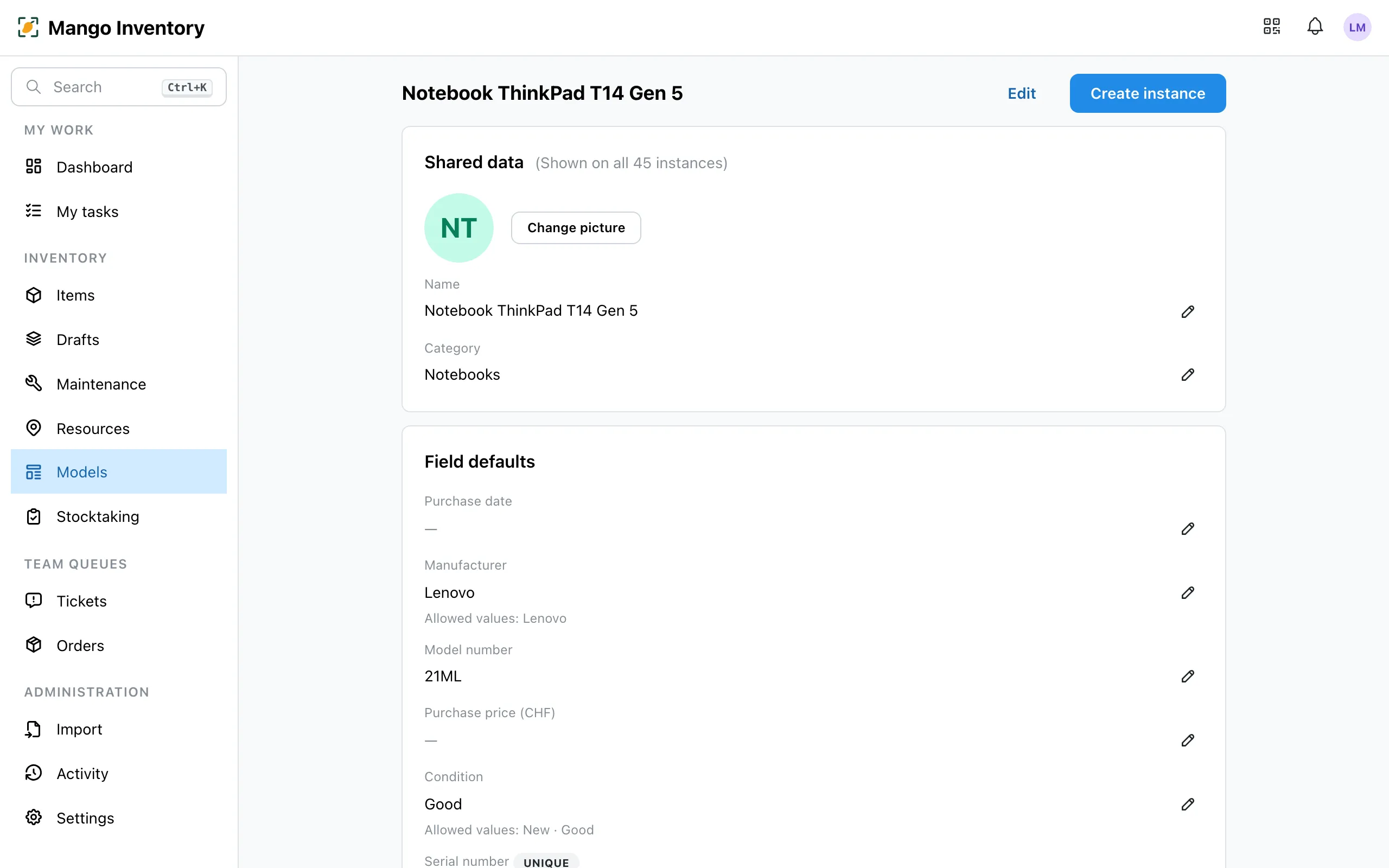
The detail page shows the shared values and all devices of this model.
-
“Create instance” opens the form with all values prefilled. Enter serial number and location, then “Create another” — device after device.
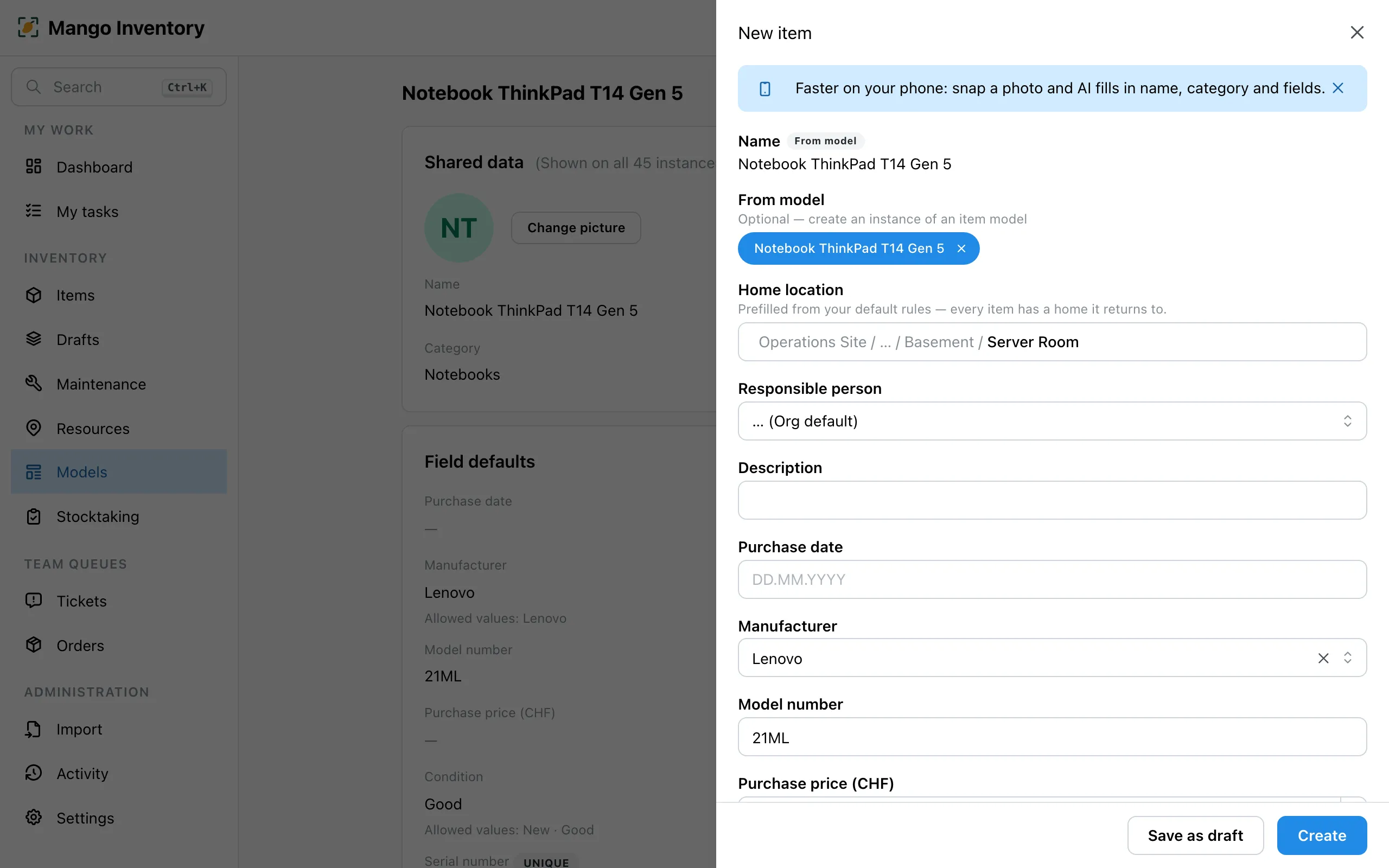
All devices are named after their model and differ by serial number and label. Rename the model, and all devices are renamed in one go.
Values from the model
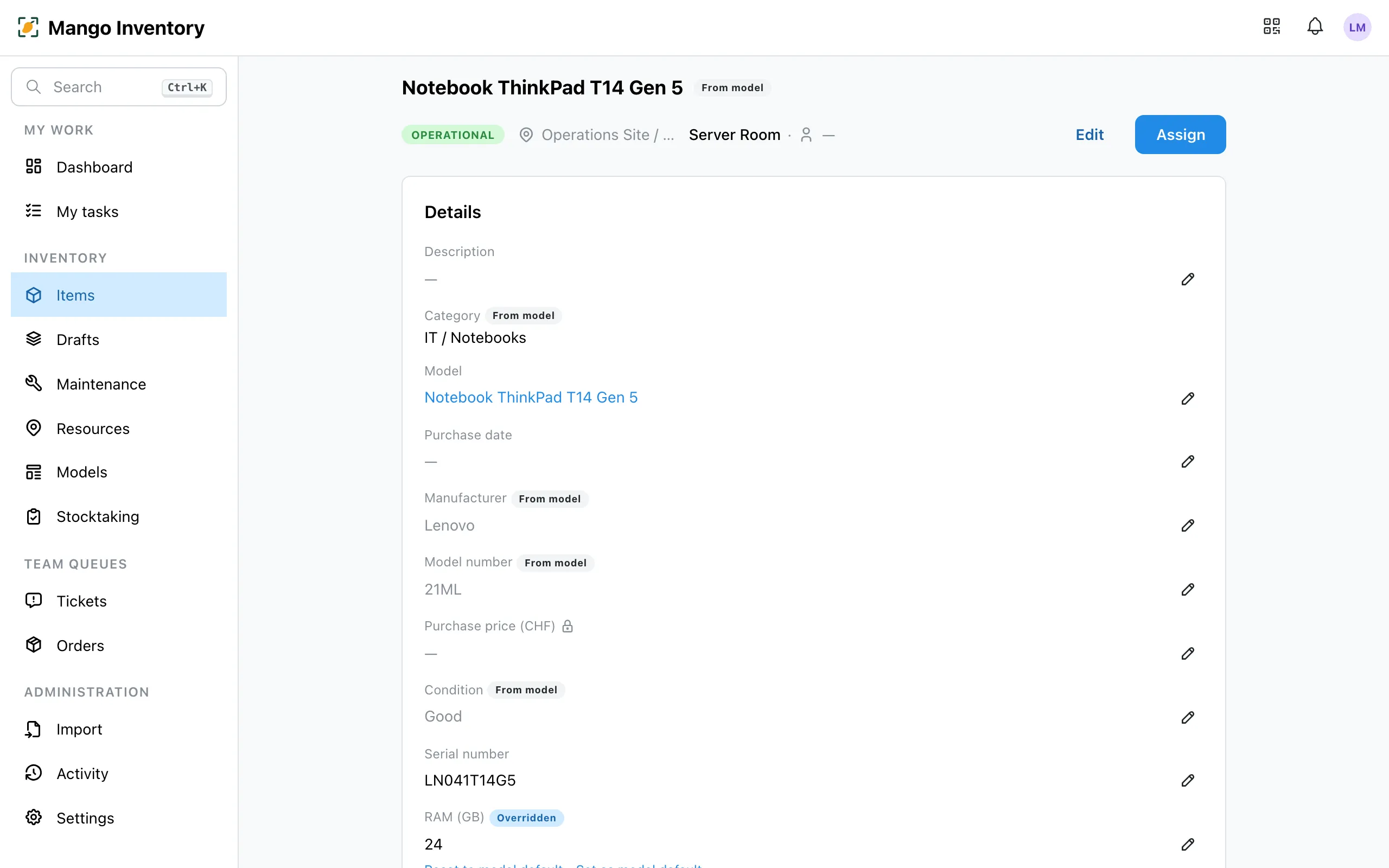
Section titled “Values from the model”On the device you see where each value comes from:
- “From model” — the value follows the model.
- “Overridden” — the device has its own value. “Reset to model default” undoes it.
- “Set as model default” — this device’s value applies to all from now on.
Allowed values
Section titled “Allowed values”Per field, the model can set the possible values, for example only the battery types “18 V” and “22 V”. On the device the field then becomes a select. The import also flags values that aren’t allowed.