
Connect Microsoft Entra
This page walks you through the one-time setup — click by click. Afterwards Mango Inventory maintains your user list by itself: whoever is in the chosen Microsoft groups joins automatically; whoever leaves the groups is deactivated. You need no IT knowledge for this, only a Microsoft account with administrator rights. Plan for 10 to 15 minutes.
Prerequisites
Section titled “Prerequisites”- Premium plan in Mango Inventory — directory sync is part of it. Details on the pricing page.
- Owner role in Mango Inventory — only owners see the Settings → Single sign-on page.
- A Microsoft account with the “Global Administrator” role in your organization. That is the account your organization uses to manage users and licences in Microsoft 365. It doesn’t have to be you — you can hand steps 2 to 5 to your IT.
- Microsoft Entra is the directory service behind Microsoft 365. If your staff sign in to Outlook or Teams with an address of your organization, you have Entra — even if you have never heard the name.
Setting it up
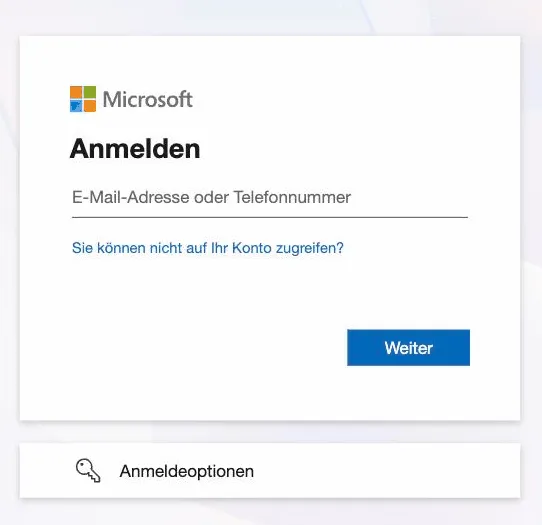
Section titled “Setting it up”Microsoft shows its pages in the language of your account. The labels on this page are the English ones. The screenshot in step 3 shows the German sign-in screen; yours appears in your account’s language.
-
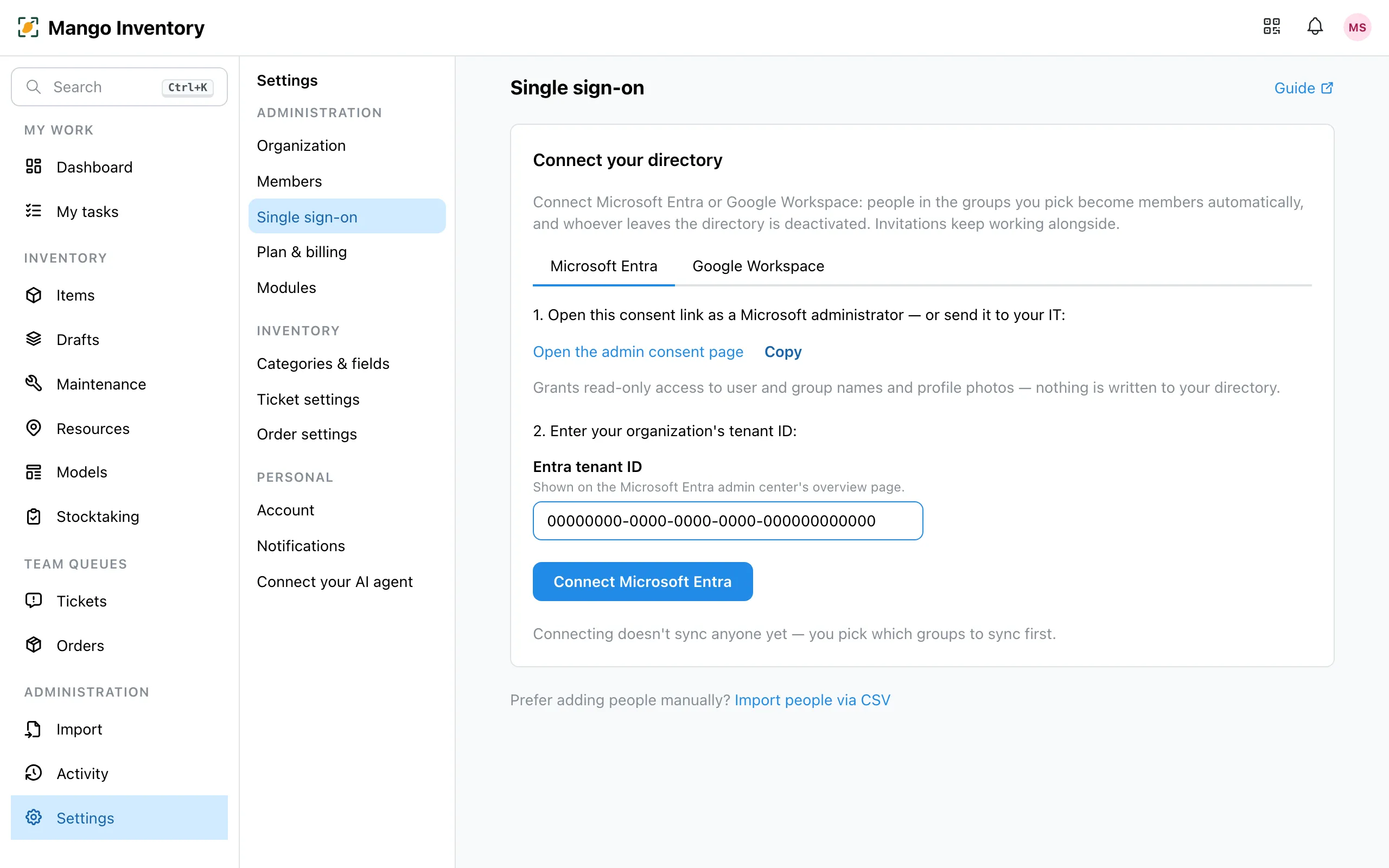
Open the setup page in Mango Inventory. Sign in at
app.mangoinventory.comand go to Settings → Single sign-on. At the top of the “Connect your directory” card there is a row of provider tabs — click “Microsoft Entra”.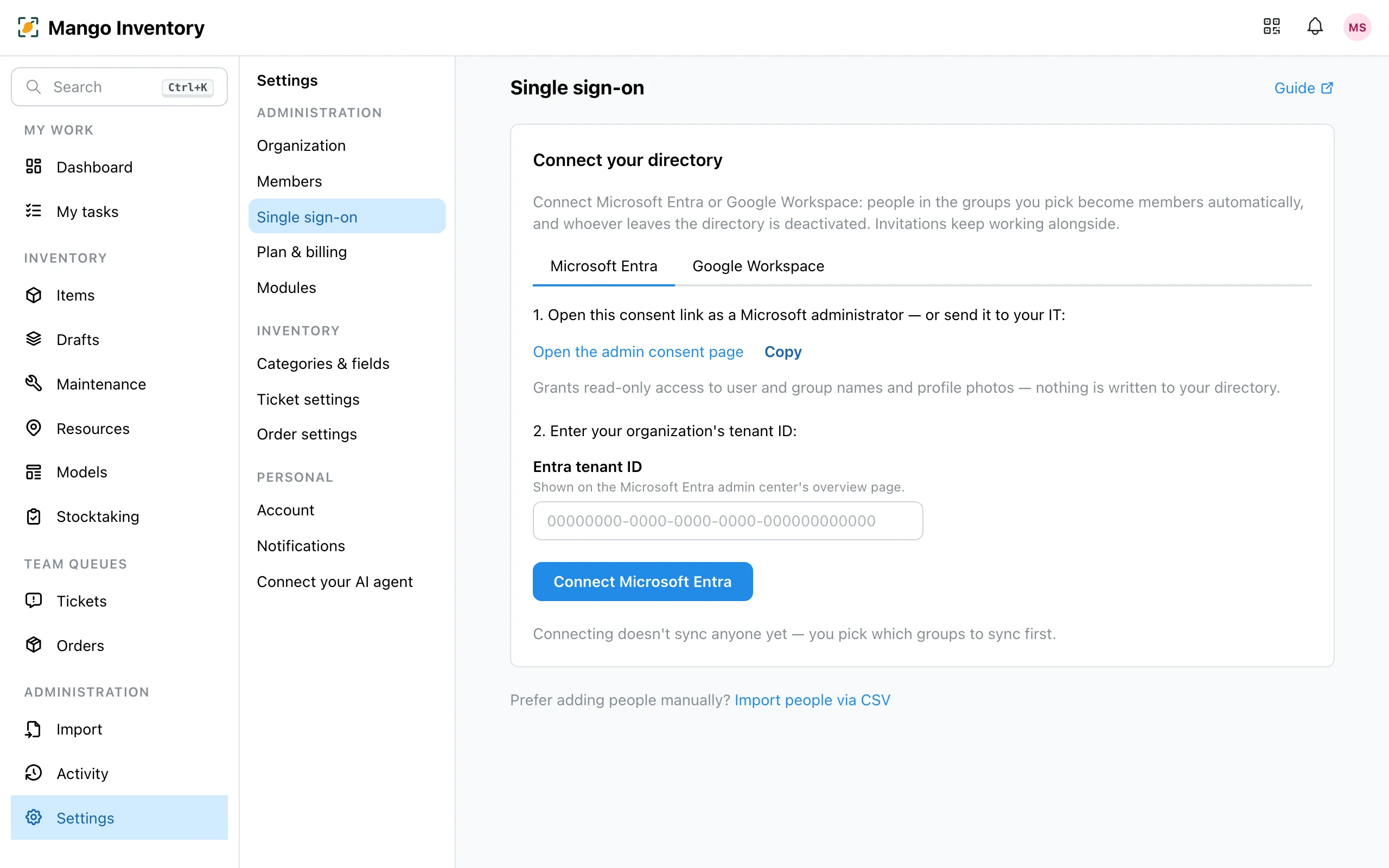
-
Open the consent link. Under step 1, click “Open the admin consent page”. If you are not a Microsoft administrator yourself, click “Copy” and send the link to your IT:
https://login.microsoftonline.com/organizations/v2.0/adminconsent?client_id=0c3379d1-8021-43ae-8cdd-1b24a4fb9a38&scope=https%3A%2F%2Fgraph.microsoft.com%2F.default&redirect_uri=https%3A%2F%2Fapp.mangoinventory.com%2Fsettings%2Fsso -
Sign in with the administrator account. Microsoft asks for the email address and password — use the account with the “Global Administrator” role, not your personal one. An ordinary user account is turned away here.
-
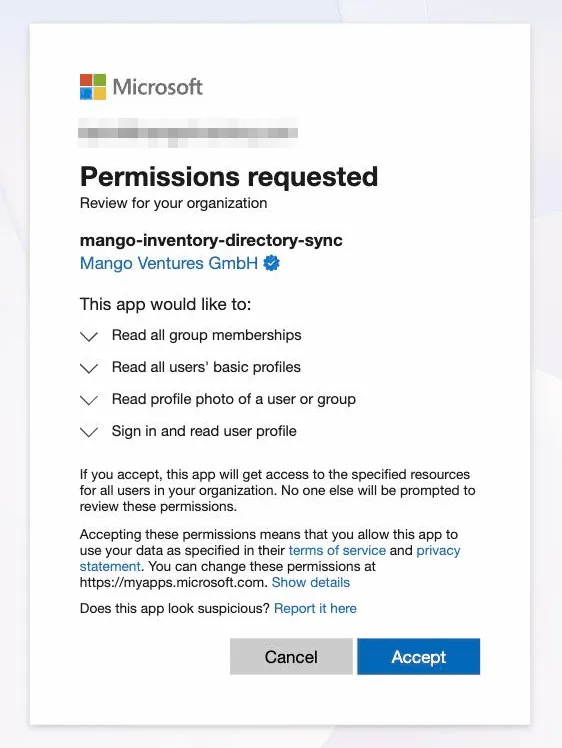
Confirm the permissions. Microsoft shows four lines with what Mango Inventory gets — read permissions only: read group memberships, read users’ basic profiles (name and email address), read profile photos, and the sign-in itself. Confirm with “Accept” at the bottom right.
You then land back on
app.mangoinventory.com. If an error message appears instead, the account was not a global administrator — then your IT takes over this step. -
Copy the tenant ID. The tenant ID is your organization’s reference number at Microsoft, comparable to a customer number. Open entra.microsoft.com, sign in and stay on the “Overview” start page: under “Basic information” it shows “Tenant ID” with a string in the form
00000000-0000-0000-0000-000000000000. Click the copy icon next to it.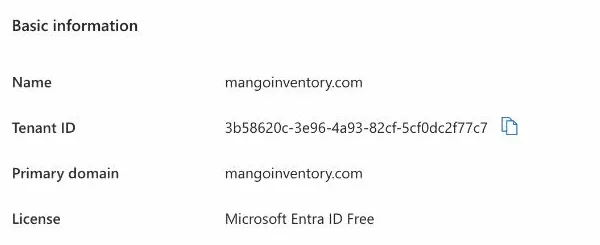
-
Enter the tenant ID in Mango Inventory. Back on the “Connect your directory” card: paste the copied value into the “Entra tenant ID” field and click “Connect Microsoft Entra”. Connecting doesn’t sync anyone yet — you pick the groups first.
-
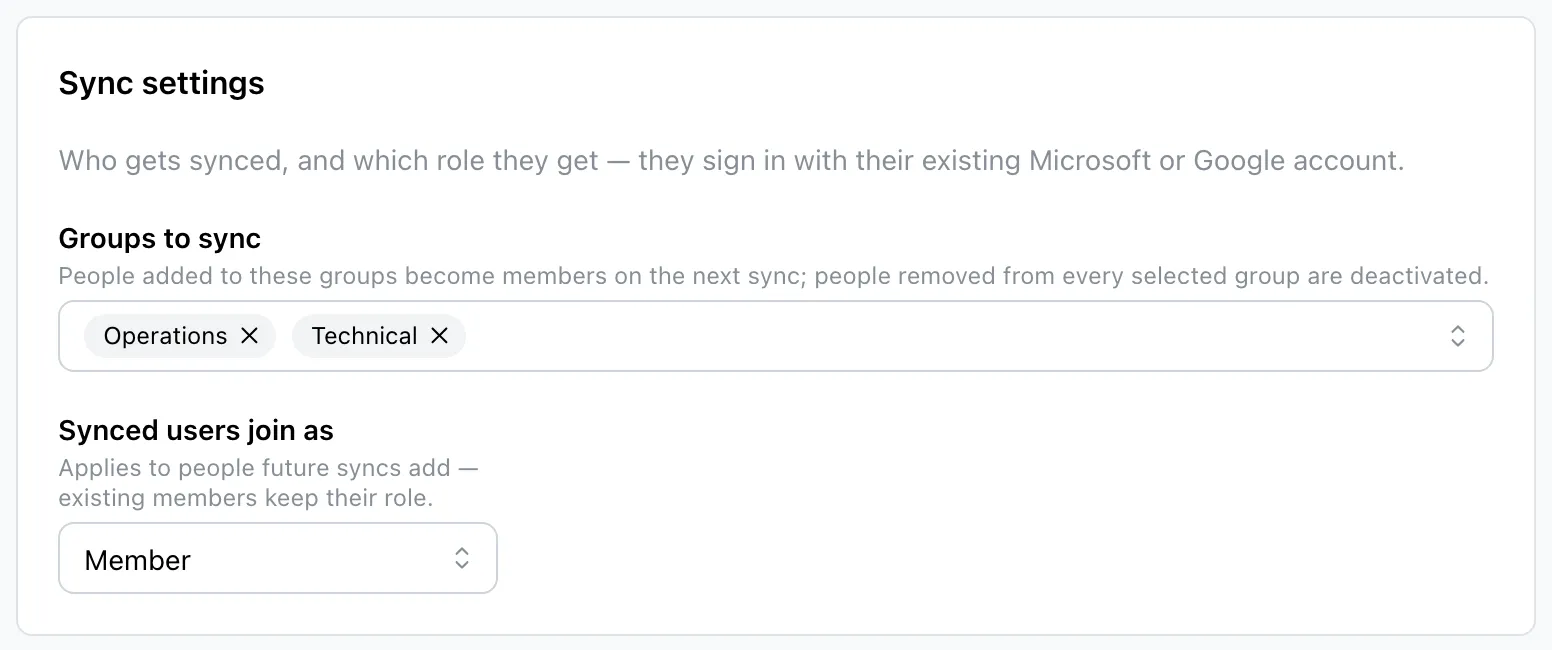
Pick the groups. The page now shows two cards. Under “Sync settings”, open “Groups to sync” and select the groups from your directory whose people should use Mango Inventory — e.g. “Operations” and “Technical”. Below it, check “Synced users join as”: everyone joining from now on gets this role (default: Member).
-
Look at the preview — then sync. Click “Preview changes”. The preview lists who would join, be updated or be deactivated; nothing changes yet. If the list looks right, click “Sync now” at the bottom.
The synced people show up in the user list right away and sign in with “Continue with Microsoft”. From now on Mango reconciles the groups every night. What that means is under Directory sync.
If something doesn’t work
Section titled “If something doesn’t work”- The first sync reports an error (“403” or “Authorization_RequestDenied”). That is normal right after the consent: Microsoft needs a few minutes until the approval is known everywhere. Wait five minutes and click “Sync now” again.
- The card shows “Needs reconnecting”. The consent was revoked in Entra or is no longer valid. Open the consent link on the card once more, confirm again, and sync afterwards.
- The group list stays empty. Then the tenant ID is wrong or the consent is missing. Check the ID on the overview page in the Entra admin center and go through steps 2 to 4 again.
- Individual people stay on “Not signed in yet”. Usually the email address is missing in the directory — see the note below.
- More than 500 people cannot be synced by one connection. In that case, pick narrower groups or get in touch with us.