Directory sync
Connect your organization’s directory once, and Mango Inventory maintains the user list by itself: whoever is in the chosen groups joins automatically; whoever leaves them is deactivated. This page explains what the sync does — the click-by-click guides live on the two provider pages.
Pick your guide
Section titled “Pick your guide”- Connect Microsoft Entra — for organizations on Microsoft 365. Your Microsoft administration grants consent once, then you enter the tenant ID.
- Connect Google Workspace — for organizations on Google Workspace. You sign in directly with a Workspace administrator account.
Prerequisites
Section titled “Prerequisites”- Premium plan: single sign-on and directory sync are part of the Premium plan — the free plan includes all features up to 50 items, which is plenty for trying it out. Details on the pricing page.
- Owner role in Mango Inventory: the setup lives under Settings → Single sign-on.
- Administrator rights in the directory: with Microsoft, an Entra administrator grants consent once; with Google, you connect directly with a Workspace administrator account.
What the sync does
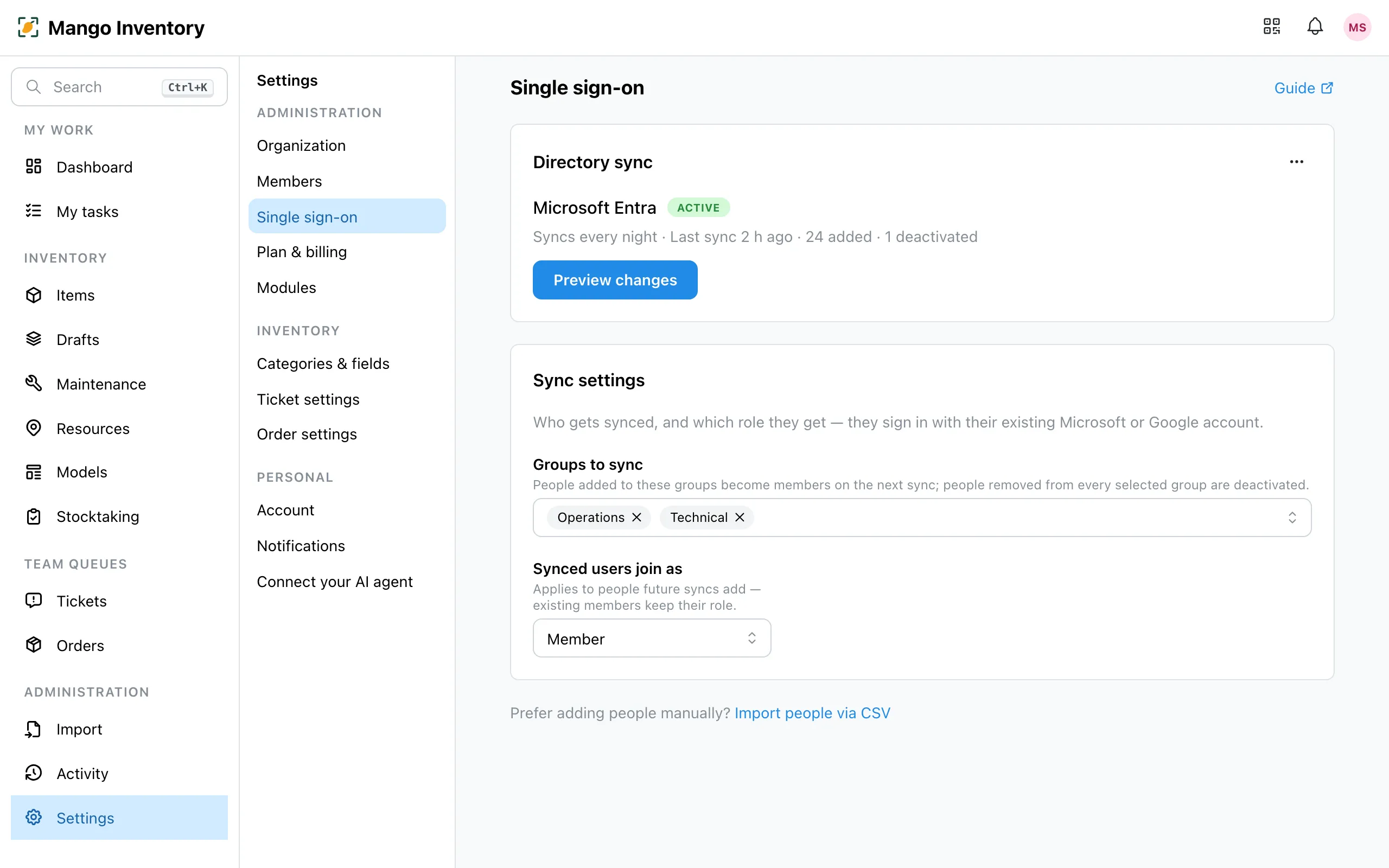
Section titled “What the sync does”Mango Inventory reconciles the chosen groups every night — or immediately via “Sync now”:
- New group members join automatically — in the role you set under “Synced users join as” (default: Member). They appear in the user list right after the sync, marked “Not signed in yet” at first; with their first sign-in via “Continue with Microsoft” or “Continue with Google” they become full users — no invitation email, no new password. You can adjust their role before that happens.
- Name changes are taken over, and so are profile pictures from the directory — details under Profile pictures.
- Whoever is removed from the groups is deactivated at the next sync. Deactivated means: no sign-in, no more access; the history (who had what, who reported what) stays fully intact. Returning to the group reactivates their access. Nothing is ever deleted. Owners are never deactivated by the directory.
- Invitations keep working — for people outside your directory, e.g. external service providers or a temporary helper with a private email address. SSO & users covers both.

Preview first, sync second
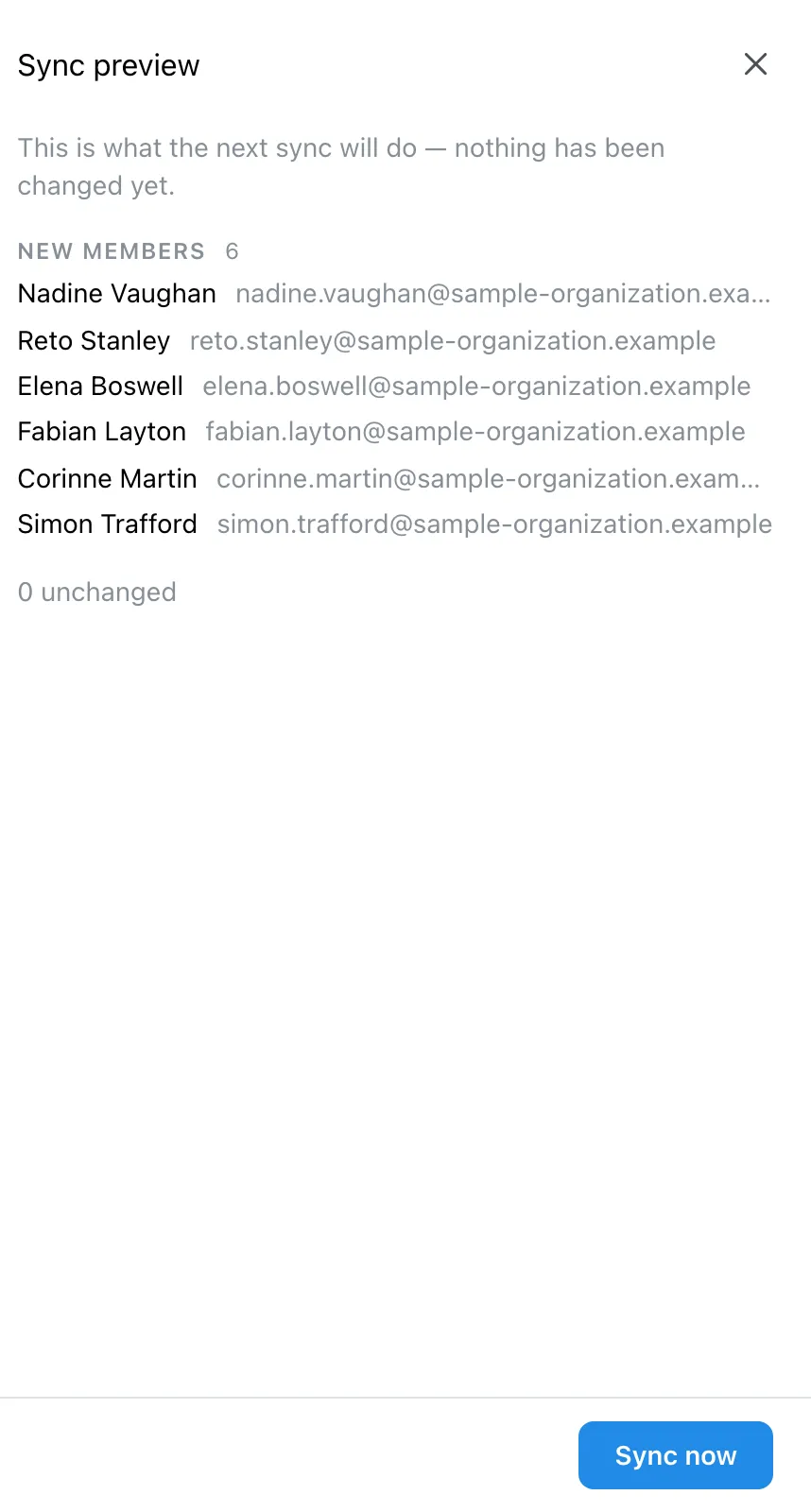
Section titled “Preview first, sync second”“Preview changes” shows who would join, be updated or deactivated. Nothing changes until you click “Sync now” inside the preview. Use it before the first sync, and whenever you change the group selection.

Profile pictures
Section titled “Profile pictures”The sync takes over the profile picture from the directory for every synced person — including people who have never signed in. That way the user list, comments and reports show faces instead of initials from day one.
- No directory picture: initials. Anyone without a profile picture in the directory is shown with initials — as before.
- Self-uploaded pictures take precedence. If someone uploads their own profile picture in Mango Inventory, it stays — the sync never overwrites it.
- Removing is temporary. If a synced profile picture is merely removed in Mango Inventory, the next sync brings it back — the directory is the source, as with names. Anyone who wants a different picture uploads their own.
- On leaving, the picture is deleted. When a person is deactivated or the directory connection is disconnected, Mango Inventory deletes the pictures it took over — self-uploaded pictures stay.
What your staff see of all this
Section titled “What your staff see of all this”Nothing — and that’s the point. They open app.mangoinventory.com, choose “Continue with Microsoft” or “Continue with Google” and stand right inside your organization, in the role you set. No new password, no invitation email, no waiting. Adjusting roles later works as usual under Settings → Users.