
History & records
“Where’s the proof?” — whether the audit asks, the fire brigade commander or the insurer: you show it right in Mango Inventory.
At a glance
Section titled “At a glance”- Who had it? — every device’s activity shows check-outs, returns, status changes and tickets, with name and time.
- Did she get it? — with receipt confirmation, the person confirms by email link which items she has received, with date and time.
- Was it inspected? — every inspection is a closed ticket with a checklist: who, when, which items passed or failed.
- What did the stocktake find? — a PDF report with cut-off date, result per location and signature fields.
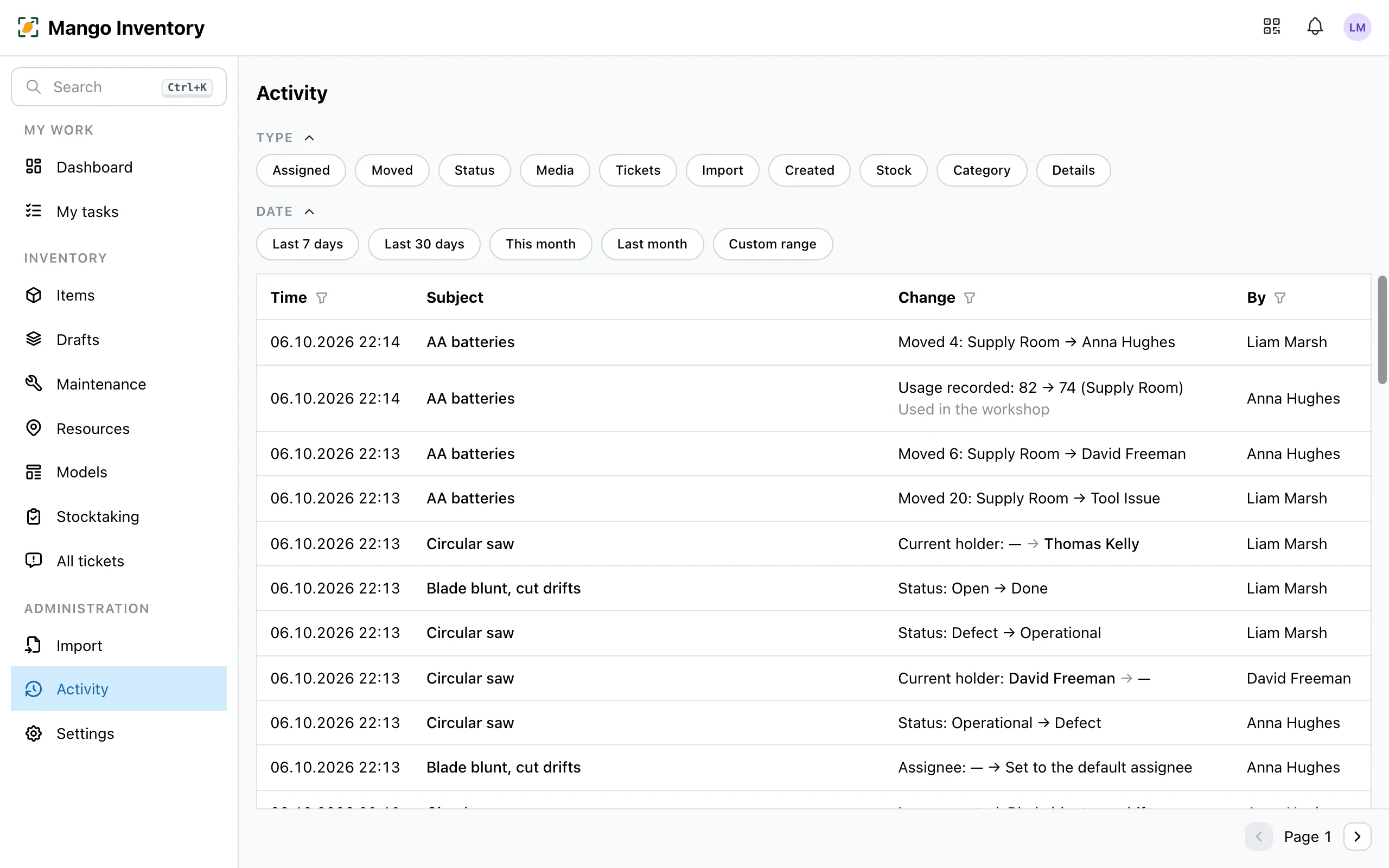
- What happened in the team? — the “Activity” page shows every change in the organization, with filters.
- Everything to take away — the items table and stocktake reports as Excel, all data as a ZIP.
The history on the device
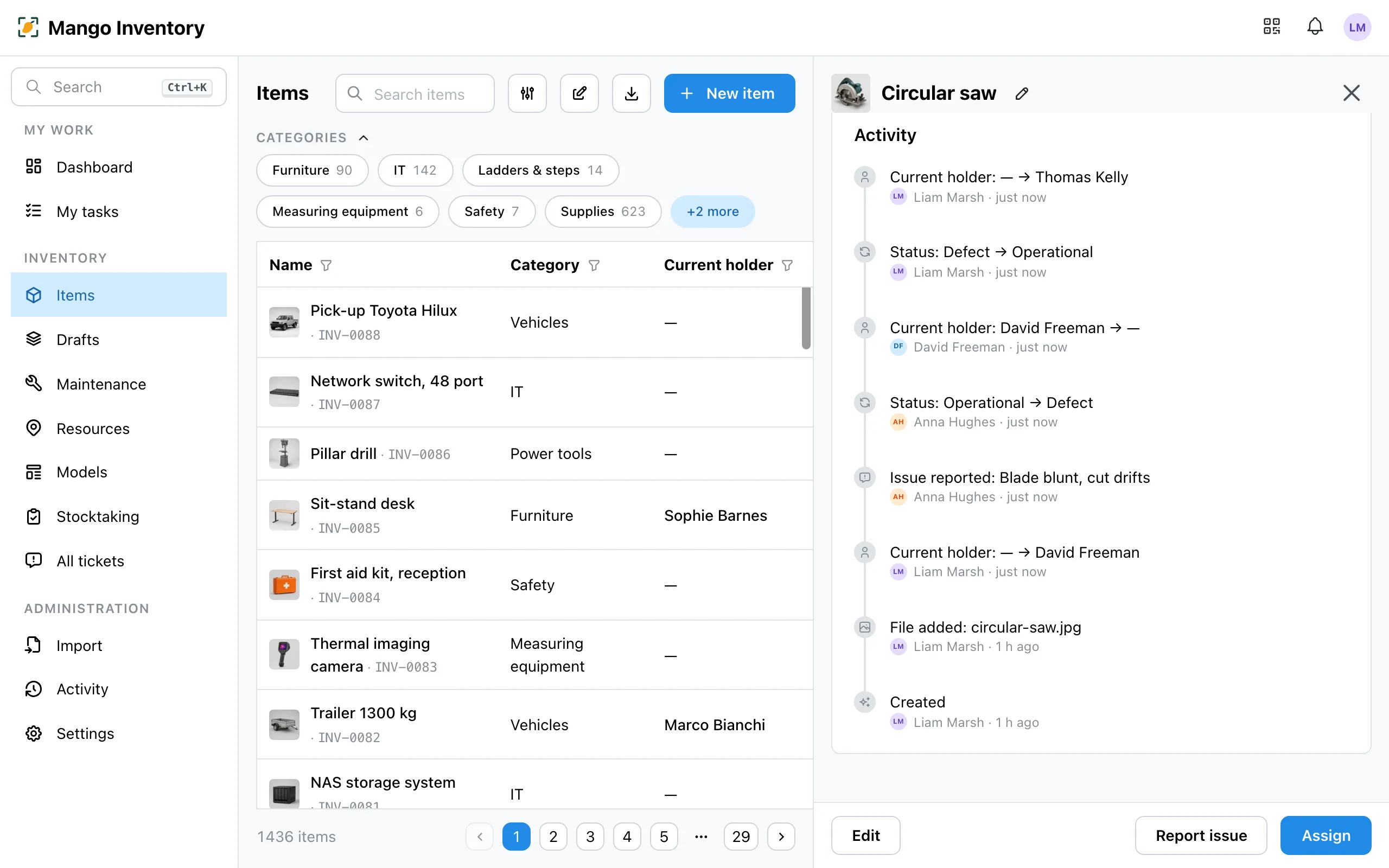
Section titled “The history on the device”Open an item: its “Activity” section shows the latest check-outs and returns (“Current holder: — → David Freeman”), location changes (“Current location: Workshop → Storeroom”), status changes and tickets — with name and time. That way you see who had the device before and when it came back. Changes made through an AI agent show there with the suffix “(via AI agent)”.
Inspections
Section titled “Inspections”Every inspection from a maintenance plan is closed as a ticket: checklist with every check item, notes, photos, who inspected and when. On the plan’s detail page you see “Last completed” and “Next due” for each device. A defect that is found leads straight to a defect ticket. You find the closed inspections under “Tickets” and in the device’s activity.
Receipt confirmations
Section titled “Receipt confirmations”If you asked for confirmation when assigning, every answer is on record: who confirmed, when, which email address the link went to, which items and which agreement text. The item shows “Confirmed …” with the date, and its activity “Confirmed by …”. More under Receipt confirmation.
Stocktake report
Section titled “Stocktake report”Once a stocktake is closed, its report stays frozen. The PDF shows cut-off date, method and the result location by location, with the discrepancies in the appendix and signature fields. CSV and Excel are available too.
Activity
Section titled “Activity”Under “Activity” (from the Manager role) you see what was changed across the whole organization: items, tickets, orders, stock. Filter by type and date and, through the “By” column, by person — for example “What did Anna change last week?”.
Exporting
Section titled “Exporting”You export the items table and the stocktake reports as Excel or CSV. “Export all data (ZIP)” downloads everything — one file per kind of data, plus all photos and documents — more under Import & export.