Skip to content

Connect your AI

Connect your AI assistant to Mango Inventory and simply ask: “Do we still have a free cordless drill?”, “Create a ticket for the broken printer at reception”, “We got five new notebooks — add one of them to the inventory” — the assistant works with your inventory, in your name and with your permissions.

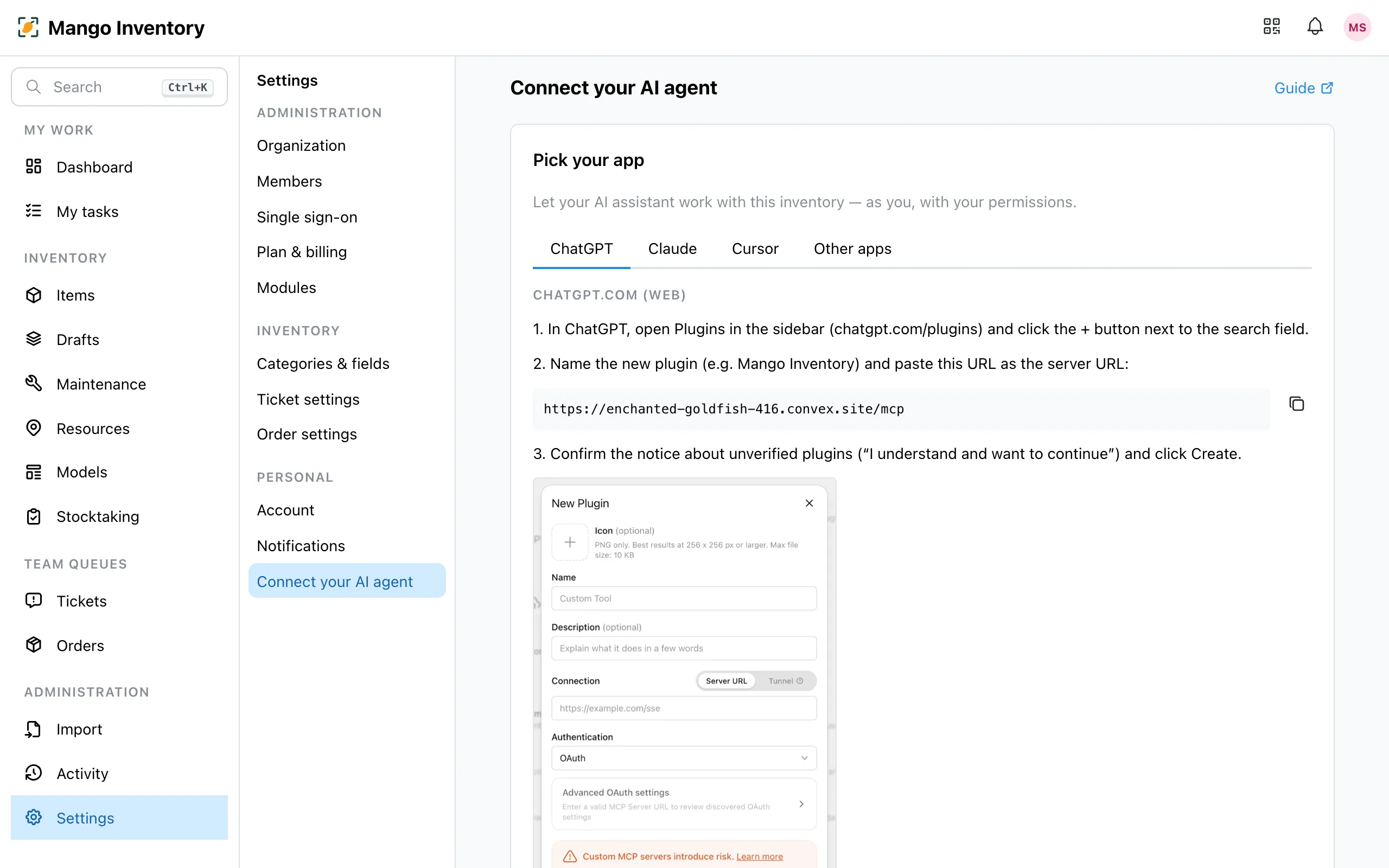
  1. Open Settings → Connect your AI agent and pick your app: ChatGPT, Claude, Cursor or Other apps.

    "Connect your AI agent" settings page

  2. Paste the connection URL where your app asks for a connector, sign in and click “Allow access” — done. The guide on the page shows the exact steps per app; a setup text or key is no longer needed.

  3. Ask your assistant something about your inventory — it can search, check availability, assign items and now also capture them in conversation, create, edit and close tickets, create and handle orders, and query the stocktake status.

Capturing items in conversation: say, for example, “Add the new notebook to the inventory” — the assistant clarifies the category, asks for all required details in one compact follow-up and marks what it assumed itself before saving. If details are missing, it saves an incomplete draft on request, which you finish later in the app — handy on the go with voice input.

Handling tickets and orders: the assistant finds the ticket you mean (“close the ticket for the broken printer”) and closes it — on request it sets the item back to “available” right away. People responsible for orders can mark orders as delivered or reject them; whoever placed an order can withdraw their own open one.

For the most common apps, the detailed steps are below. Every connection is your personal access — bound to your user account, with your permissions. That’s why each person in your organization creates their own connection.

The assistant works with the same functions as you do in the app — always with your permissions:

  • Search and answers: find items (by barcode or inventory number too), check availability, query tickets, orders and the stocktake status — and “What’s on my plate?”: your own task list and due maintenance.
  • Managing items: capture in conversation, rename, change description and custom fields, assign and move, pack into and out of containers (“put the voltmeter into the experiment case” — a case including contents moves with a single assignment), set statuses, move stock between locations, correct stock amounts (“we used 12 batteries”) and set minimum stock levels.
  • Tickets and orders: create, edit and close tickets; report maintenance checks as done (a finding automatically creates a follow-up ticket); create orders, mark them delivered, reject or withdraw them; leave comments on items, tickets and orders.
  • Setting up your organization: create categories with custom fields, locations and people — in conversation: talk for a few minutes about what you manage, the assistant proposes a structure and creates it in one step after your confirmation. Inviting users, creating and staffing teams, setting defaults and adding sample data are possible too (Owner).
  • Traceable: every change appears in the history under your name, with the suffix “(via AI agent)”.

ChatGPT connects without a setup text: you only paste the connection URL and sign in to Mango Inventory in the browser.

  1. In Mango Inventory under Settings → Connect your AI agent, in the “ChatGPT” tab, copy the connection URL (section “chatgpt.com (Web)”). To double-check: the URL is https://mcp.mangoinventory.com/mcp — it is the same for all organizations.

  2. In ChatGPT, open “Plugins” in the sidebar (or go directly to chatgpt.com/plugins) and click the ”+” button next to the search box. Don’t see a ”+”? Enable developer mode first: Settings → Security and login → Developer mode.

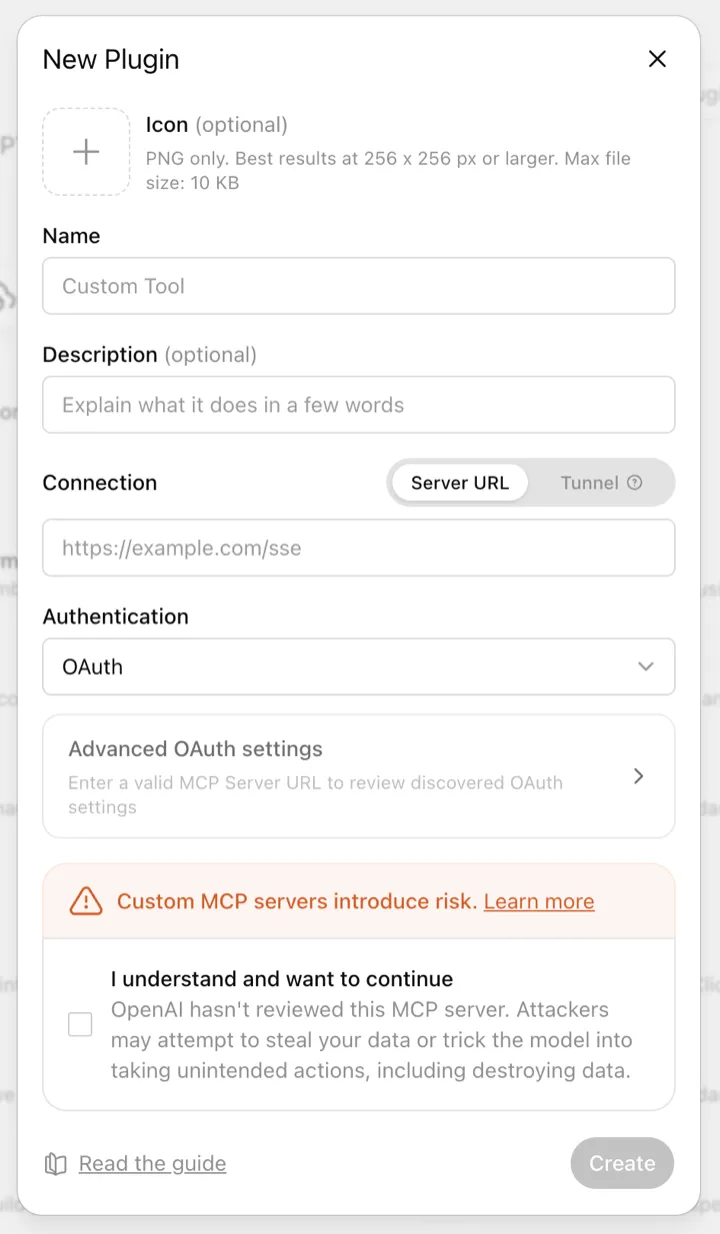
  3. In the “New Plugin” dialog: enter a name (e.g. “Mango Inventory”), paste the connection URL as the server URL, confirm the note about unverified plugins and click “Create”.

    "New Plugin" dialog in ChatGPT

  4. ChatGPT opens Mango Inventory in the browser: sign in (if needed), pick your organization and click “Allow access”.

  5. Ask ChatGPT, for example: “How many notebooks do we have?”

The connection then appears in Mango Inventory under “Existing connections” — that’s where you revoke access at any time with one click.

Ask about a specific item or capture a new one, and ChatGPT shows an item card right in the chat: photo, name, code, category, status and where the item currently is — instead of a plain text answer. When capturing, ChatGPT proposes the new item as an editable card: correct or add fields right on the card and confirm with “Create item” — no confirmation loop in the chat.

For the ChatGPT desktop app (Codex) there is a copyable text in the same tab: pasted into a Codex/agent chat, ChatGPT sets the connection up itself — here too you only sign in to Mango Inventory at the end, no key is included.

If your organization works with Microsoft 365, Mango Inventory is available right in Copilot Chat — as an agent your IT deploys once, centrally, for everyone. You don’t have to set anything up yourself:

  1. Your IT administration deploys the Mango agent — the guide is under Set up Copilot.

  2. Open Copilot Chat (in Teams, on microsoft365.com or in Office) and pick the agent Mango Inventory — you’ll find it in the sidebar or via “Agents”.

  3. On first use, Mango Inventory’s sign-in page opens once: sign in, pick your organization, “Allow access” — that’s expected; after that, the connection is set up.

  4. Ask the agent, for example: “How many notebooks do we have?”

Claude connects like ChatGPT, without a key: paste the URL, sign in, done.

  1. In Mango Inventory under Settings → Connect your AI agent, in the “Claude” tab, copy the connection URL. To double-check: the URL is https://mcp.mangoinventory.com/mcp — it is the same for all organizations.

  2. In Claude Desktop or on claude.ai, open Settings → Connectors and click “Add custom connector”.

  3. Enter a name (e.g. “Mango Inventory”) and the copied connection URL — you don’t need any other fields.

  4. Claude opens Mango Inventory in the browser: sign in (if needed), pick your organization and click “Allow access”.

  5. Ask Claude, for example: “How many notebooks do we have?”

Custom connectors are available on all Claude plans (one per account on the Free plan). The connection then applies everywhere you’re signed in with the same Claude account.

For everyone working in the terminal — one command is enough:

Terminal window
claude mcp add --transport http mango-inventory <connection URL> \
--header "Authorization: Bearer <key>"

The fully filled-in command (with a key you create there) is under Settings → Connect your AI agent in the expandable section “For scripts & automations” — copy, run, done.

The easiest way: in Mango Inventory under Settings → Connect your AI agent, in the “Cursor” tab, click “Add to Cursor” — Cursor opens, asks you to sign in to Mango Inventory and sets the connection up itself.

Manually it works via the file .cursor/mcp.json (in the project folder, or globally as ~/.cursor/mcp.json) — the URL is enough, Cursor starts the sign-in on first contact by itself:

{
"mcpServers": {
"mango-inventory": {
"url": "https://mcp.mangoinventory.com/mcp"
}
}
}

Tools without a sign-in page — n8n, cron jobs, CI — still connect with an API key. Under Settings → Connect your AI agent → “For scripts & automations” you create a key (read-only if you like) and get ready-made templates: a configuration file (JSON), terminal commands for Claude Code, Codex CLI and Gemini CLI, plus an mcp-remote variant for clients without header support.

  • Your permissions apply: the assistant can do exactly what you can — no more. Every change appears in the history under your name.
  • Revoking access: under “Existing connections” on the same page you remove any connection with one click — other existing connections keep running.
  • The connection URL itself is not a secret — access only comes into being once you sign in and allow it. Only keys from “For scripts & automations” grant access directly: treat those like a password.