
Capturing your inventory
“But then I’d have to capture everything first” — no. Your Excel list is imported in an afternoon, and whatever is still missing you photograph with your phone as you walk round. You type very little. Start with one room.
At a glance
Section titled “At a glance”- Your list, in within an afternoon — upload Excel or CSV, the AI maps the columns. If you like, we do the import for you free of charge — send us the list.
- With your phone through the building — one photo per item, the AI suggests name and details. You just keep walking.
- Go through it later, at your own pace — your captures wait as drafts until you publish them at the computer or on your phone.
- One by one, when it has to be quick — “New item”, add a photo, done.
- Existing numbers stay — the inventory or barcode number from your list becomes a scannable code right away on import.
Which route fits?
Section titled “Which route fits?”| You have … | Best route |
|---|---|
| an Excel list | Import it — or send it to us |
| no list, but equipment in rooms | A walk-through with the mobile app |
| a few new devices | capture them one by one |
| many identical devices | describe them once as an item model |
You can mix the routes: import the list first, then add what’s missing on your walk-through.
With your phone through the building
Section titled “With your phone through the building”-
In the mobile app, tap “New item” in the “Scan” tab (from the Manager role). The camera starts a photo series.
-
One photo per item. Every photo is saved right away. If there’s a barcode in the picture, it is linked to the item straight away.
-
“Done” when the room is captured. In the “Scan” tab the round shows under “Captured this round”: the AI has given every capture a name, and each is “Ready to review”. All captures are waiting as your personal drafts.
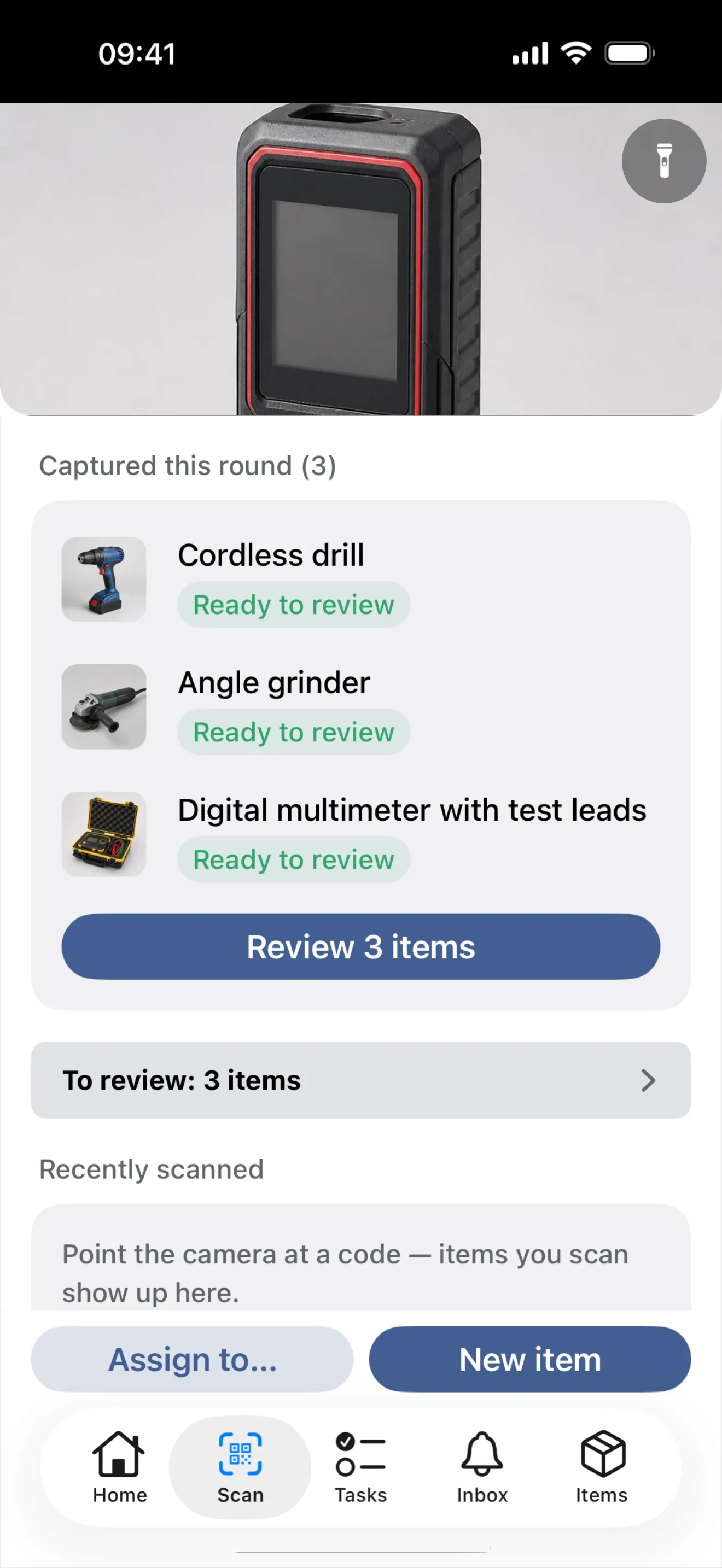
Three photos, three names from the AI — ready to review.
A colleague with the Manager role can do the walk-through too — each person then sees their own drafts.
Reviewing drafts
Section titled “Reviewing drafts”Under “Drafts” in the web app, your captures are grouped by day. “Review drafts” shows them one after the other: photo on top, fields below, the AI’s suggestions already filled in. Pick a category, add details, “Create” — and on to the next capture. Anything photographed by mistake you discard right there.
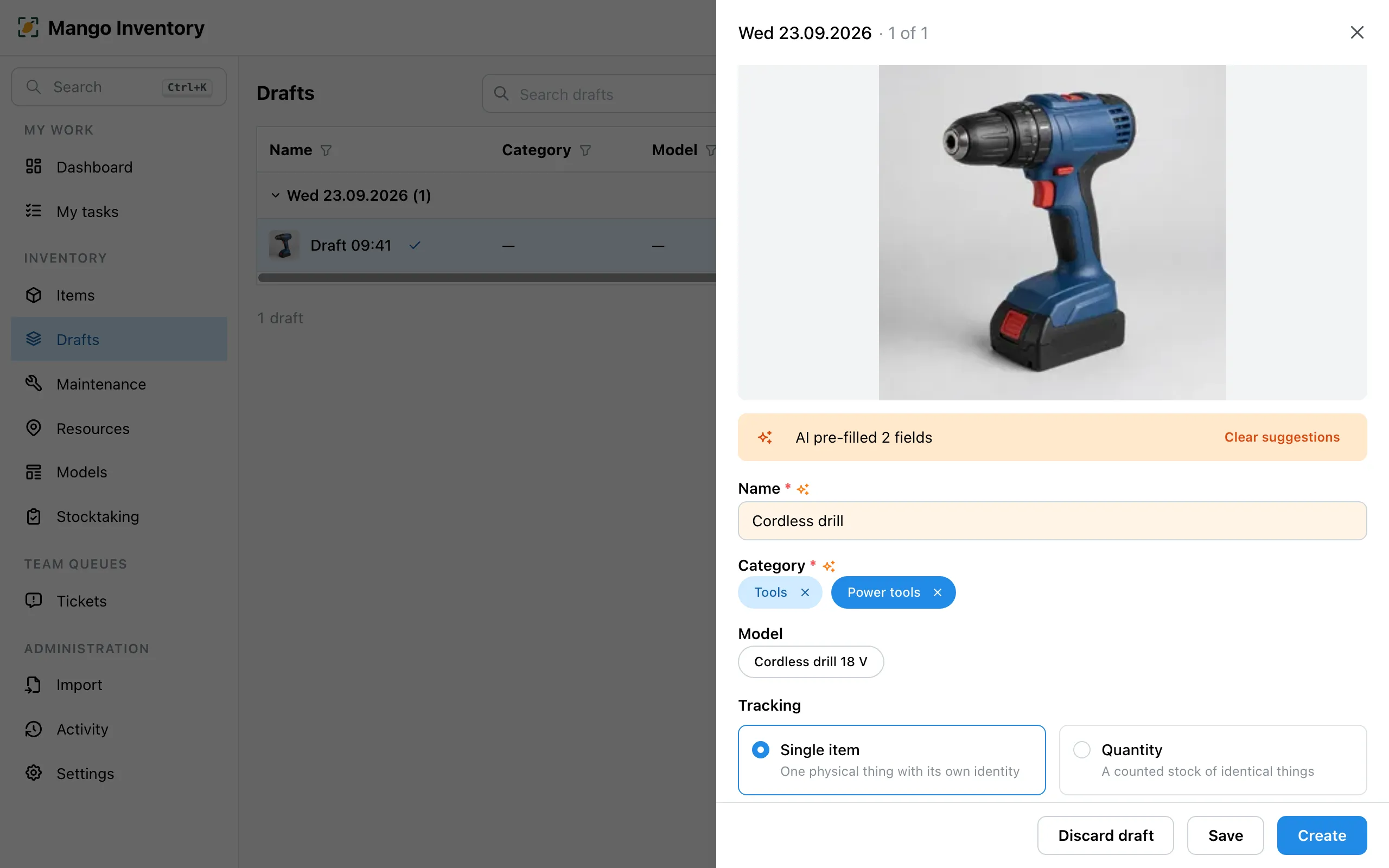
- Drafts are yours — nobody else sees them until you publish them.
- A reminder — as long as captures are open, My tasks shows the row “Review your captures”.
- On your phone too — if you prefer, go through the captures right in the app.
Capturing one by one
Section titled “Capturing one by one”Under “Items” → “New item”. Attach a photo, and “Prefill from photo” fills in the form. Fields and categories are explained under Items.
After that
Section titled “After that”Stick on labels — from then on, every scan finds the right item: Barcodes & labels.