Skip to content

Orders

“I need a second cordless drill for assembly” — instead of an email or a shout down the hall, it becomes an order: visible, commentable, and on fulfillment the item lands in the right place automatically.

  1. “New order”: you’ll find the button under “My tasks”, on the dashboard at “Opened by me” (+) and in the search palette (⌘K) — in the mobile app under “Tasks” (+). Describe freely what you need — or pick concrete items from the inventory.

  2. Deliver to: yourself by default; any person or any location can be chosen. Plus Needed by: prefilled with the next working day, adjustable or removable — that’s how the people responsible for orders see what’s up first.

  3. Submit. The people responsible for orders are notified; follow-up questions run through the comments right on the order.

As long as the order is Open, you can edit or cancel the request. You see your own orders as tidy cards with status and latest reply — or collected together with your reported tickets under “My tasks → Opened by me”, including a history of closed requests.

Fulfilling (for people responsible for orders)

Section titled “Fulfilling (for people responsible for orders)”

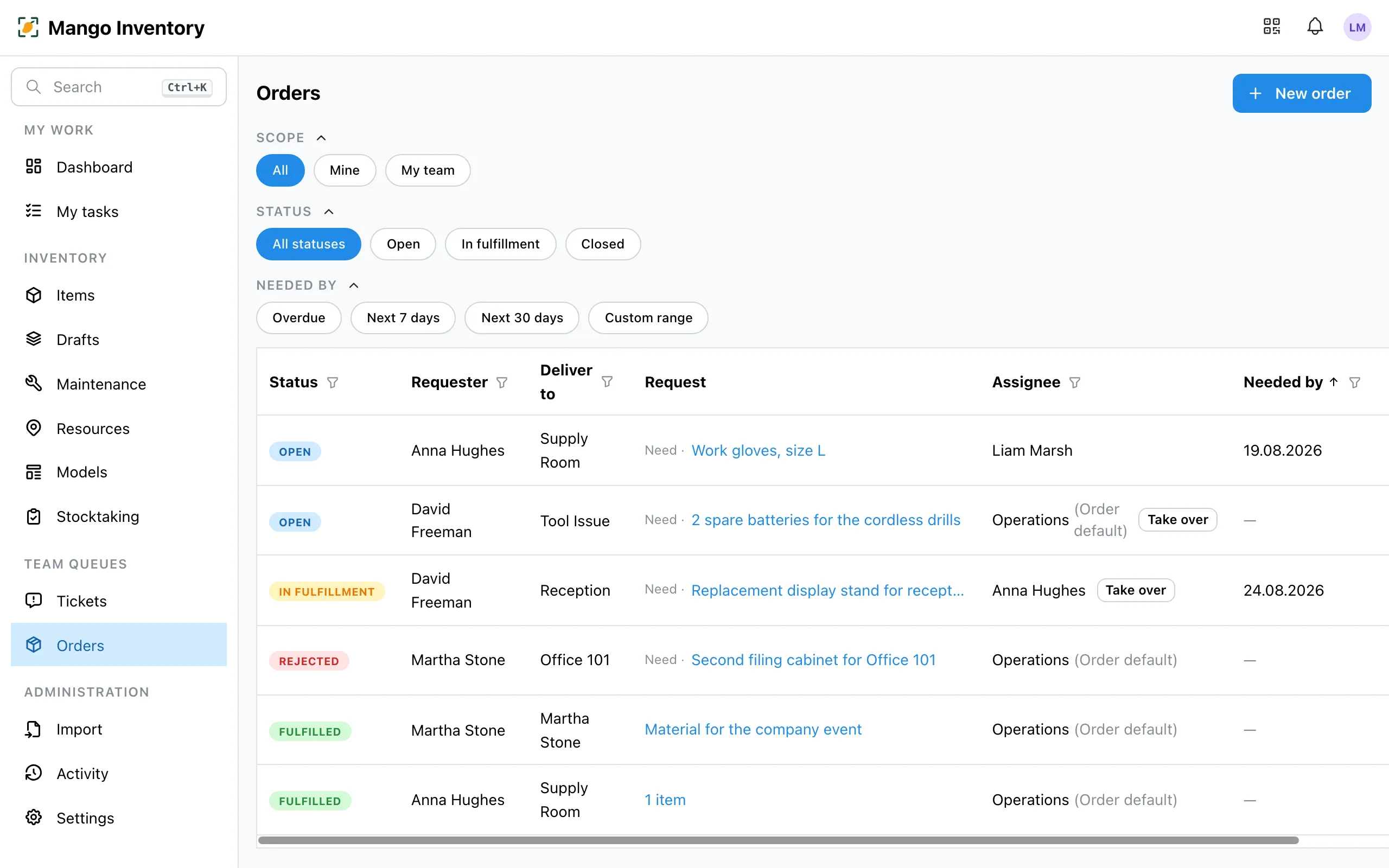
People responsible for orders see the whole organization’s queue as one table — sorted by status and “Needed by” (switchable), with the scope filter “All | Mine | My team”. “My team” appears for members of at least one team and is their default view on opening. Two filter rows narrow things down with one click: Status (All statuses · Open · In fulfillment · Completed — the individual end statuses like Rejected or Cancelled are reached via the column filter) and Needed by (Overdue, Next 7 days, Next 30 days or a custom range); the column headers additionally filter by status, requester, delivery target and date:

Orders list with quick filters for status and "Needed by"

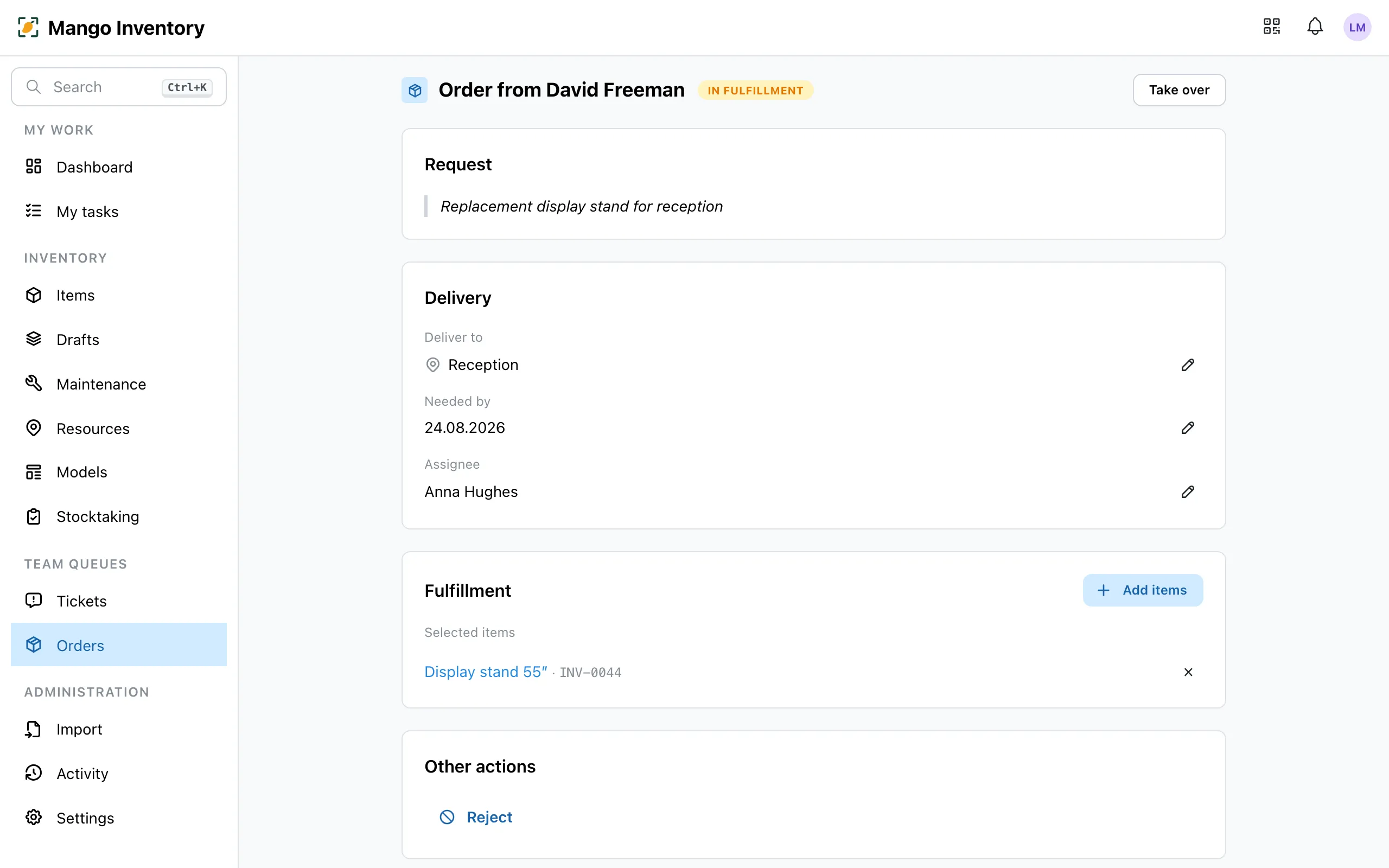
  1. Open the order, read the request. In the “Fulfillment” section, search the inventory for the right items and add them. For quantity items (whiteboard markers, paper …) you pick the amount and source instead — the amount is reserved for the order. In the mobile app this works right at the shelf: “Select by scanning” opens a compact viewfinder in the fulfillment section — scan the label, take it over with one tap.

    Order detail with fulfillment section

  2. “Fulfill order”: all chosen items are assigned to the delivery target — with a normal history entry, as if done by hand. Reserved amounts are moved from the source location to the delivery target as a perfectly normal stock movement. Pure free-text orders (“10 whiteboard markers”) can be closed too, once they’re taken care of — without any picked items. Alternatively “Reject” — with a short reason (required), which the requester sees right in their notification.

  3. The requester is notified about the outcome.

Who is responsible for orders — individual people or whole teams — is set by owners under Settings → Order settings. There you can also pick a default assignment for new orders; if the field stays empty, they go to the organization’s default responsible person or default team (Settings → Organization) — an order is never unassigned.

Items that are requested in an open order or already reserved for one are marked everywhere — on the item page, in the list and in the picker. Anyone who tries to assign a requested item to someone else is warned first; reserved ones stay locked until they are removed from the order.

For quantity items (whiteboard markers, paper …) you can set a min. stock per location. If the freely available amount — the stock minus quantities reserved for orders — falls below it, a task appears under “My tasks” (on the web) or in the mobile app’s “Tasks” tab — for everyone responsible for orders, and additionally for whoever is set as “Responsible” on the affected location (if no one is set on the location itself, the nearest location above it applies — the same location resolution the notification uses). That way the alert arrives while the shelf still looks full but most of it is already promised. The task leads to the affected item; restock through a regular order. The task resolves itself once stock reaches the minimum again — or when you remove the min. stock.