
Import & export
Almost everyone comes from Excel. Your existing list is imported in an afternoon — or you send it to us, and we do the import for you free of charge. And whatever Mango Inventory knows, you can get back out at any time.
At a glance
Section titled “At a glance”- Your list as it is — CSV, XLSX or XLS, or paste rows straight from Excel.
- The AI maps the columns — you only confirm. The next time you import the same list, everything is already mapped.
- You confirm everything new — you see new categories and locations before the import starts.
- Undo with one click — every import can be taken back as a whole.
- Export whenever you like — any table view as Excel or CSV, and all data including photos as a ZIP.
Importing
Section titled “Importing”-
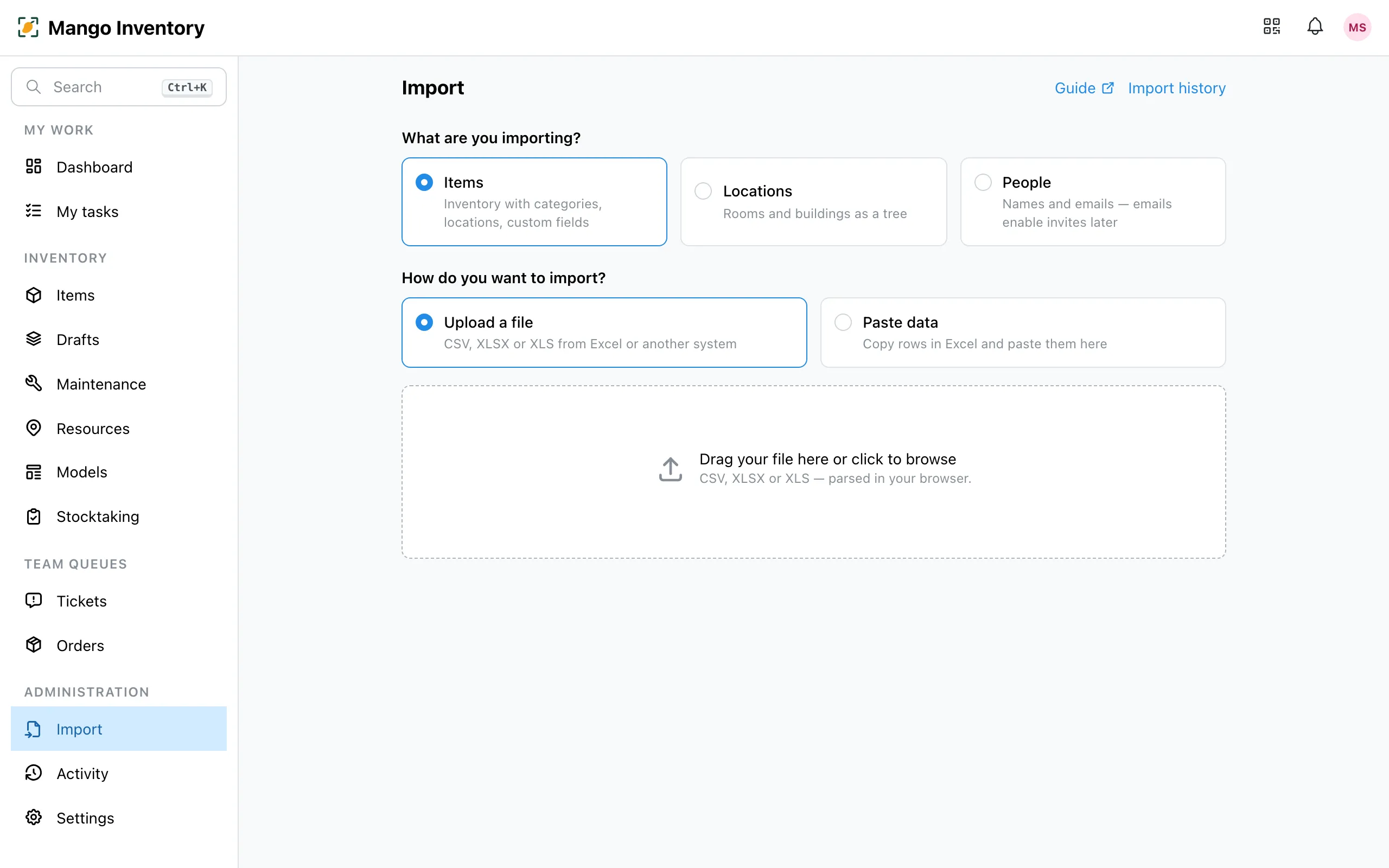
Upload the file and choose what you’re importing: items, locations or people.
-
Map the columns. The AI suggests a target for each column: name, category, location, responsible person, model or your own fields. Location paths like “Workshop hall/Tool issue” become the location tree.
-
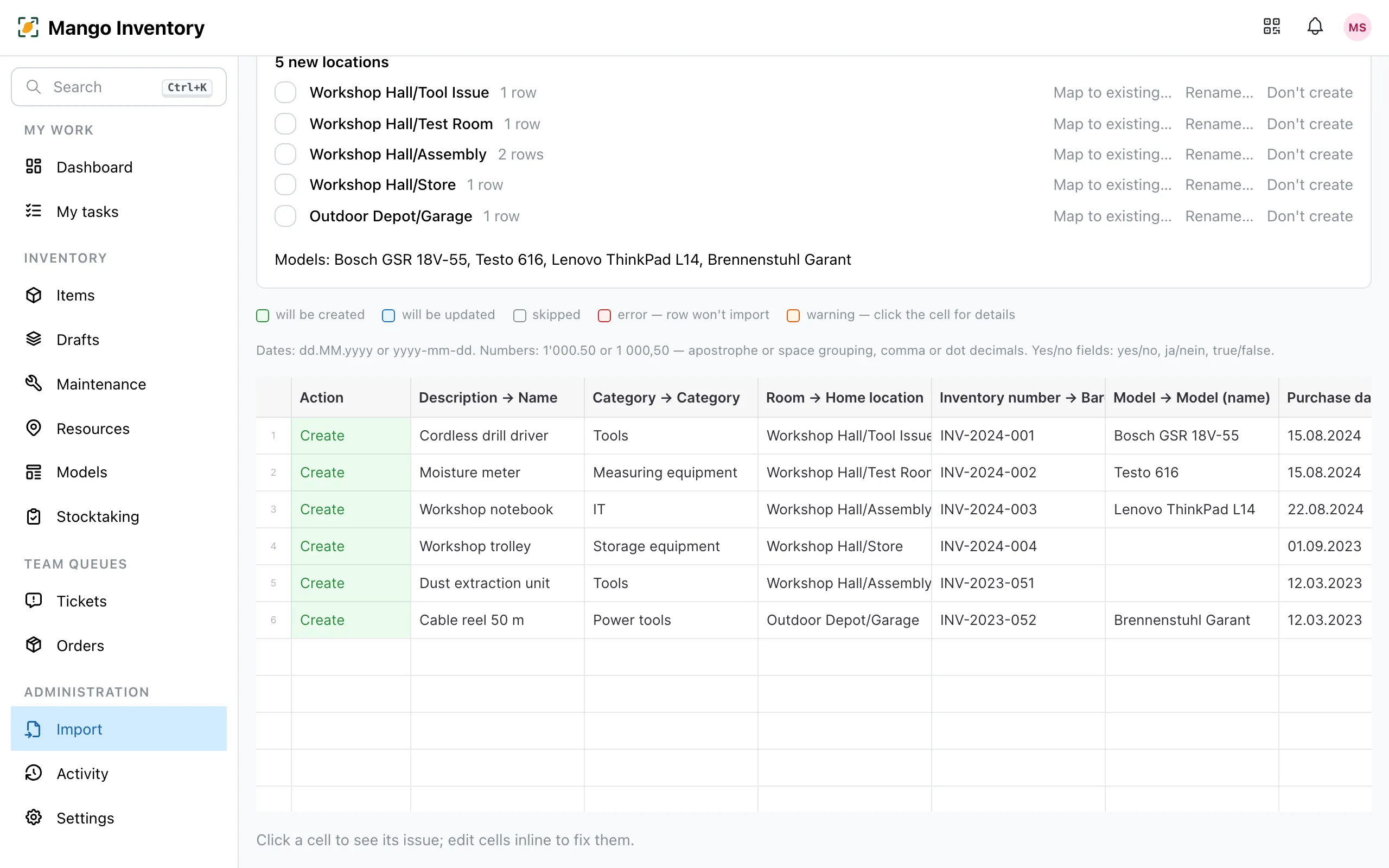
Look it over. The preview shows every row with notes; you correct cells right there. Confirm new categories and locations, rename them or map them to existing ones — or “Confirm all”.
-
Import. Every row needs a name and a category. An invalid value holds nothing up: the item is created and marked “Incomplete”.
Every import shows up in the import history, where you can undo it as a whole.
Exporting
Section titled “Exporting”In the table under “Items”, the menu at the top right exports the current view with your filters, columns and sorting — as CSV or as an Excel file. Stocktake reports are available as CSV and Excel too.
All data at once: under Settings → Organization, “Export all data (ZIP)” downloads your whole inventory — one CSV file per kind of data, plus all photos and documents.