
Items
Every device, every machine, every tool has a record in Mango Inventory: with photo, location, your own fields and the history of who had it when.
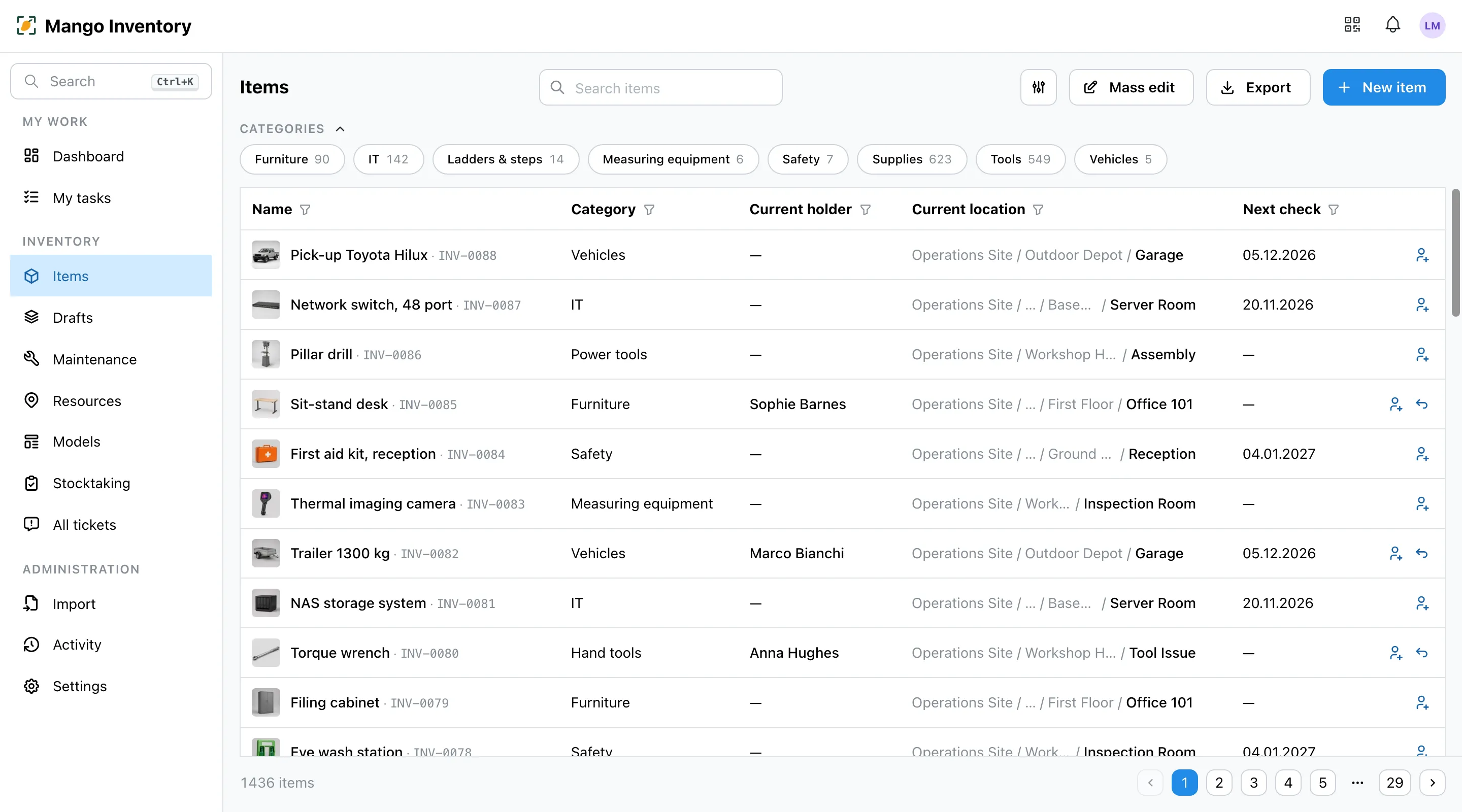
At a glance
Section titled “At a glance”- One table for everything — search, filter, sort, pick columns and export to Excel. Save views you use often (“Defective devices”) for later.
- Your own fields — per category the details you need: serial number, warranty until, purchase price, link to the manual.
- Change many at once — filter, then set values for all matches, as in Excel.
- Photos and documents on the device — manuals, invoices, inspection reports.
- The history on the device — every change, every check-out, every ticket: who, what, when.
- Form from a photo — one photo is enough, the AI suggests name and details. You check and save.
Capturing an item
Section titled “Capturing an item”-
“New item”: name, category and home location are enough. Attach photos and documents right away.
-
Save. The item opens beside the list and from now on shows everything about the device: where it is, who has it and had it before, open tickets and, further down, the next inspection and the barcodes.
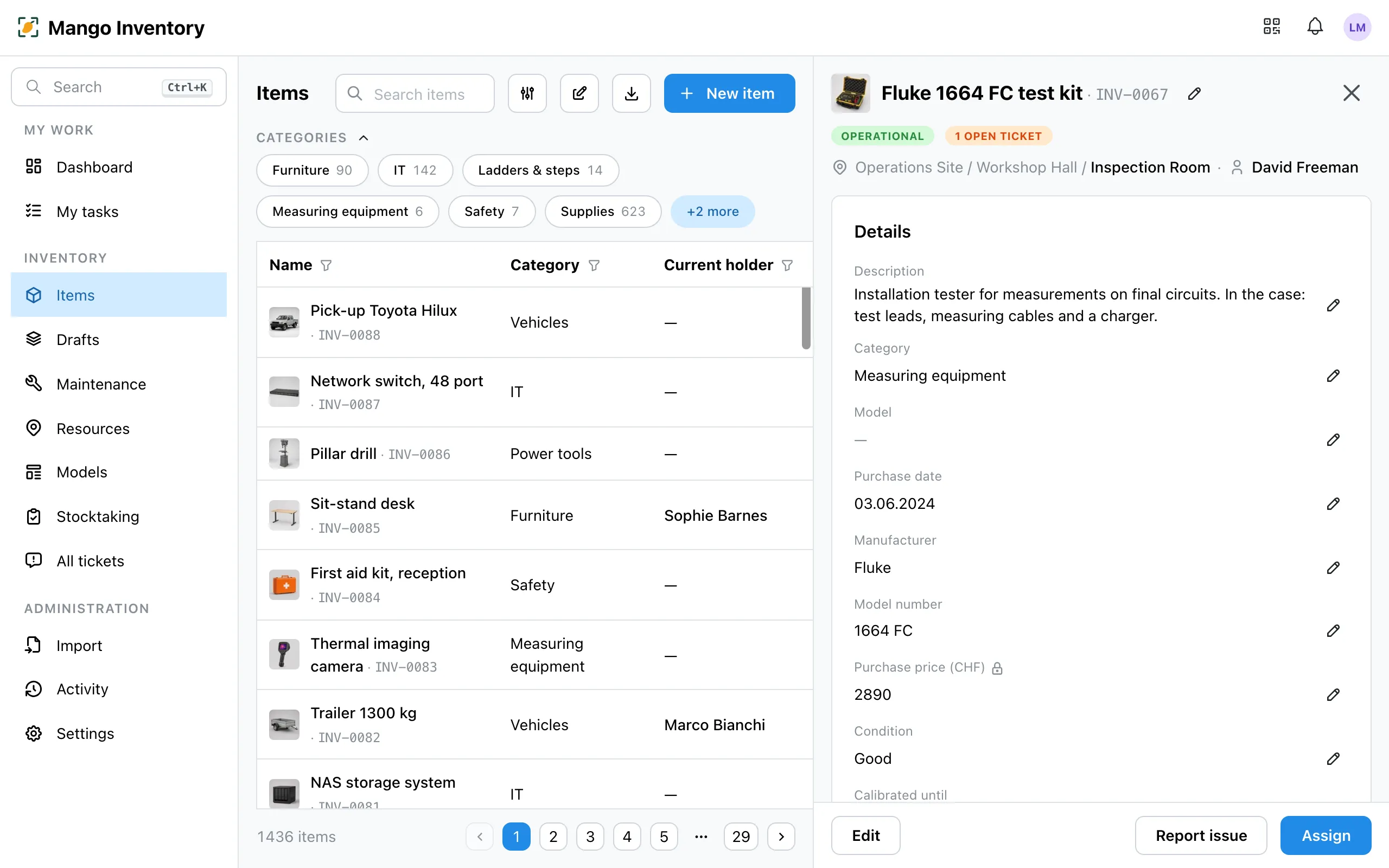
-
Stick on a label — one from us, one you print yourself or one you already have, see Barcodes & labels.
Many items at once? Import your Excel list or walk through the building with your phone — see Capturing your inventory.
Categories and custom fields
Section titled “Categories and custom fields”Under Settings → Categories & fields you create your categories (“IT”, “Tools”, “Vehicles”) and the fields for each category.
- Any kind of detail: text, number, amount with currency, date, select, multi-select, yes/no and link.
- Required fields: what you really need is asked for when capturing. If it is missing after an import, Mango marks the item as “Incomplete”.
- Unique fields: an inventory or serial number exists only once.
- Managers only (from the Premium plan): fields such as the purchase price stay invisible to members and viewers.
- Subcategories inherit the fields of their category.
Merge categories that were created twice with “Merge into…” in the ⋯ menu; all items and values are kept.
Status
Section titled “Status”The status tells you what condition an item is in: Operational, Defect, In repair, Lost or Retired. Whoever reports a defect sets the device to “Defect” at the same time. As long as the report is open, every person sees a warning before they get the device.
Quantity items
Section titled “Quantity items”Batteries, gloves, cable ties you capture as a quantity instead of as single items — with stock per place and a min. stock. Everything about it is under Quantity items.
Containers
Section titled “Containers”A toolbox, a cart or a crate is an item itself and can hold other items.
- The contents go along: when the toolbox is checked out or moved, that applies to everything inside — one assignment is enough.
- Pack by scanning: in the mobile app you scan piece by piece into the toolbox.
- Count faster: at stocktaking you count the toolbox and confirm its contents in one step.
Item models
Section titled “Item models”20 identical cordless drills? Describe them once as an item model. Every device takes over name, category and values and only carries its own serial number and location.
Drafts
Section titled “Drafts”What you photograph with the mobile app first lands as a personal draft and waits under “Drafts” until you go through it and publish it — more under Capturing your inventory.