
Tickets
A ticket turns “the ladder in the workshop wobbles” into a task with a responsible person, a due date and a history.
Included from the Pro plan — pricing.
At a glance
Section titled “At a glance”- Report while scanning — “Report issue” right on the item, at the computer or with your phone.
- Without an account too — temporary staff, outside companies and guests report through the QR label.
- Just say what’s wrong — “Dictate” turns your description into title, description and the matching item.
- Lands with the right person — every ticket is assigned to a person or a team from the start.
- Defective devices stand out — as long as a defect is open, every person sees a warning before they get the device.
Reporting a ticket
Section titled “Reporting a ticket”-
“Report issue” on the open item — or “New ticket” on the Tickets page.
-
Title and type (Defect, Maintenance, Inspection, Other) are enough; the description is optional. The ticket goes to the responsible person or team. You adjust priority, due date and assignment afterwards in the ticket, or already when you create it under “New ticket”. For a defect, a checkbox sets the item to “Defect” right away.
Or just speak: “Dictate” (in the app “Dictate description”) fills in the form from your description (“In the workshop, a rung on the ladder is loose”). Something wrong? Tap “Correct” and say it again (“No, room 501”).
-
Submit. The responsible person or team is notified.
Working through
Section titled “Working through”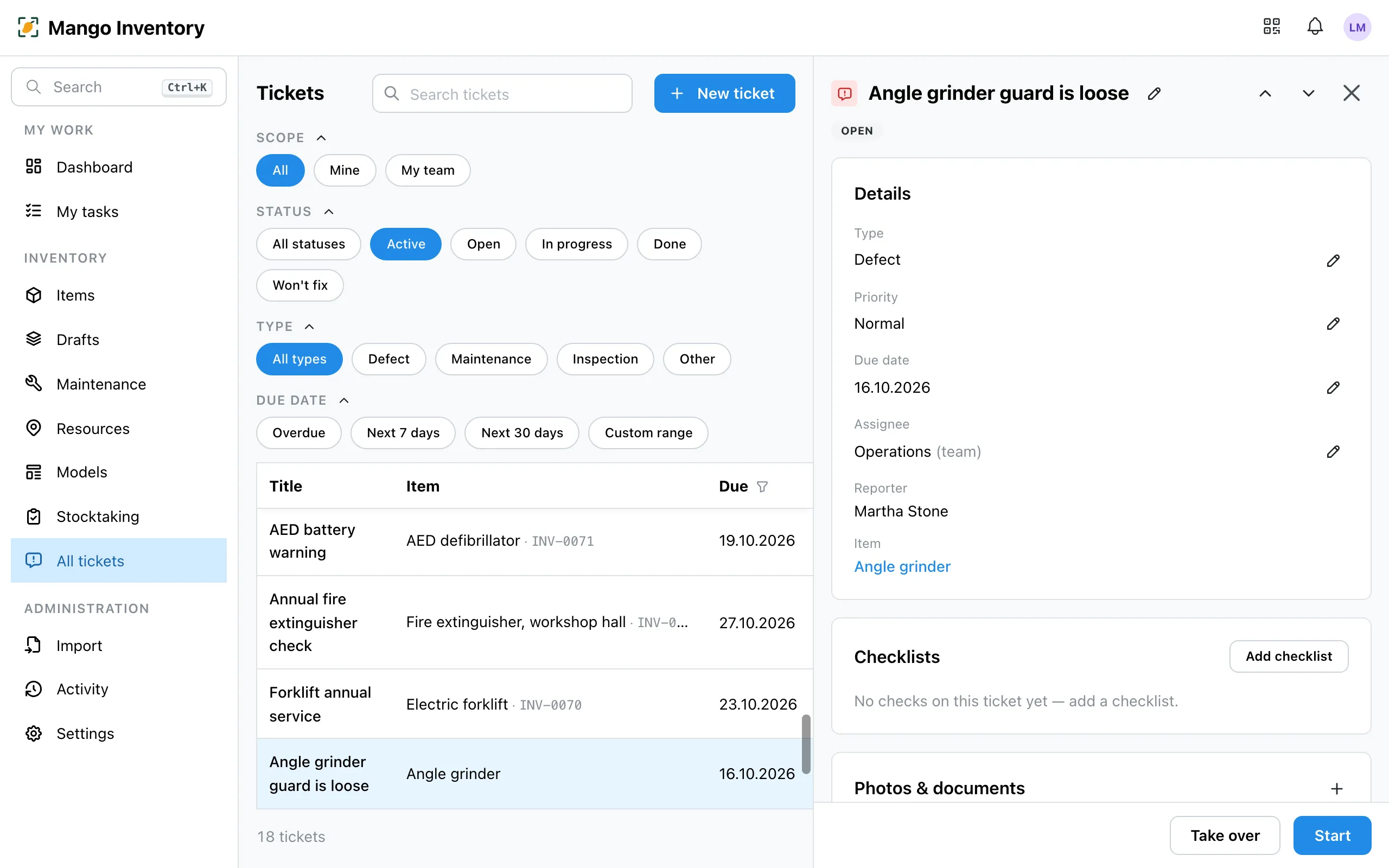
- Status: Open → In progress → Done (or “Won’t fix”). When you close a defect, you set the device back to “Operational” in the same step.
- Assignment: a person or a whole team. In a team, every person sees the ticket under “My team”.
- Due date: overdue tickets show in red at the top of My tasks.
- Checklist: check items to tick off, with a photo if you like — the basis for maintenance & inspections.
- Comments: with @-mentions, dictated if you like.
The overview
Section titled “The overview”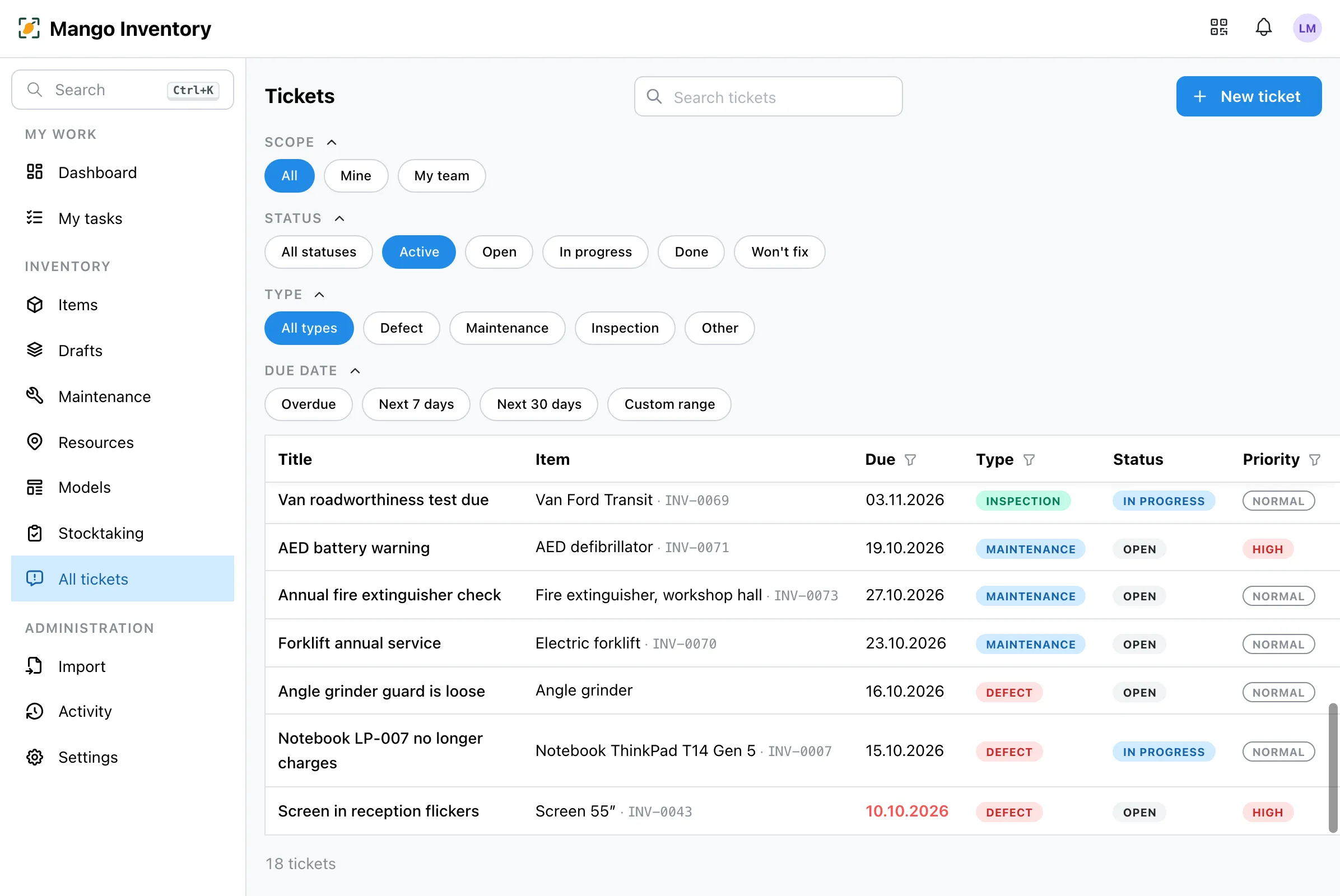
Filters above the table narrow things down with one click: All · Mine · My team, status, type and due date (overdue, next 7 or 30 days). A click on a row opens the ticket beside the list.
Settings
Section titled “Settings”Under Settings → Ticket settings you decide per ticket type who gets new tickets (defects → caretaker, maintenance → IT) — more under Who gets which work?. There you also add custom fields per type, such as the repair company’s job number.