
Receipt confirmation
When someone gets equipment from you, they confirm by email link that they have it — so everyone knows what they are responsible for, and you know that they know.
Included from the Pro plan — pricing.
At a glance
Section titled “At a glance”- Confirm without an account — the person opens the link in her email, sees her items with photos and confirms with one click. Her name is already filled in.
- Part of assigning — tick “Ask for confirmation” and Mango does the rest: the email and the reminders after 3 and 7 days.
- Also for equipment already out there — with “Ask to confirm” you get a confirmation for what someone has had for years.
- Problems surface early — if something is missing, wrong or damaged, the person reports it on the same page.
- On record — who confirmed which items when, and which text she agreed to.
- You see who is missing — the “Confirmations” overview shows open requests, and overdue ones come to you as a task.
What the person sees
Section titled “What the person sees”-
An email from “Your organization via Mango Inventory”, naming the person who asks. A click on “Check and confirm” opens her page.
-
There she sees your organization (with its logo, if you have set one), the items with photos and your agreement text. Her name is filled in. One click on “Confirm” — done. She gets a copy by email.
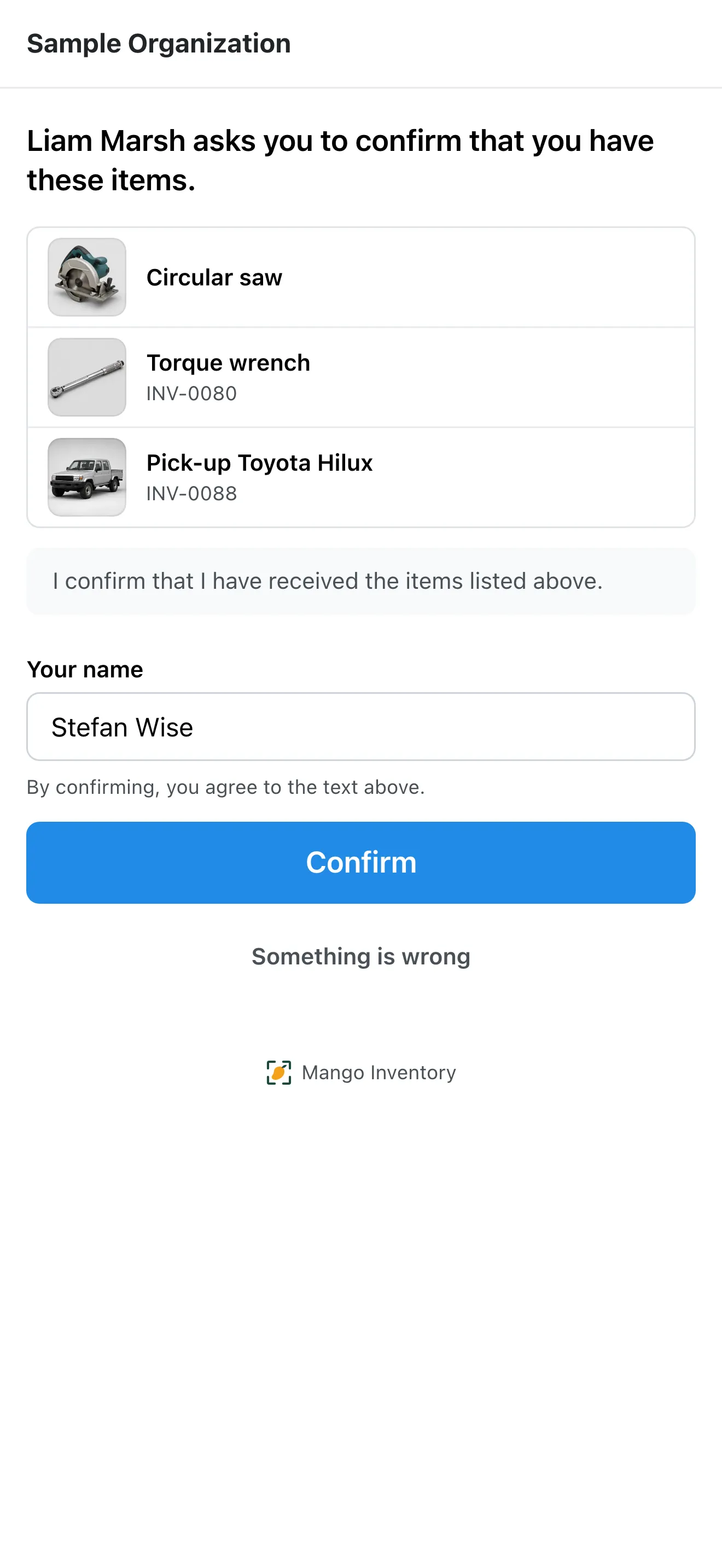
No account: check, the name is already there, confirm. -
If something is wrong, she picks “Something is wrong”: the items concerned, the reason (I don’t have it · Wrong item · Damaged · Other) and, if she likes, a comment.
She needs no account, no password and no app. The page shows only her own items — no prices, no notes, no other people.
Switching it on
Section titled “Switching it on”-
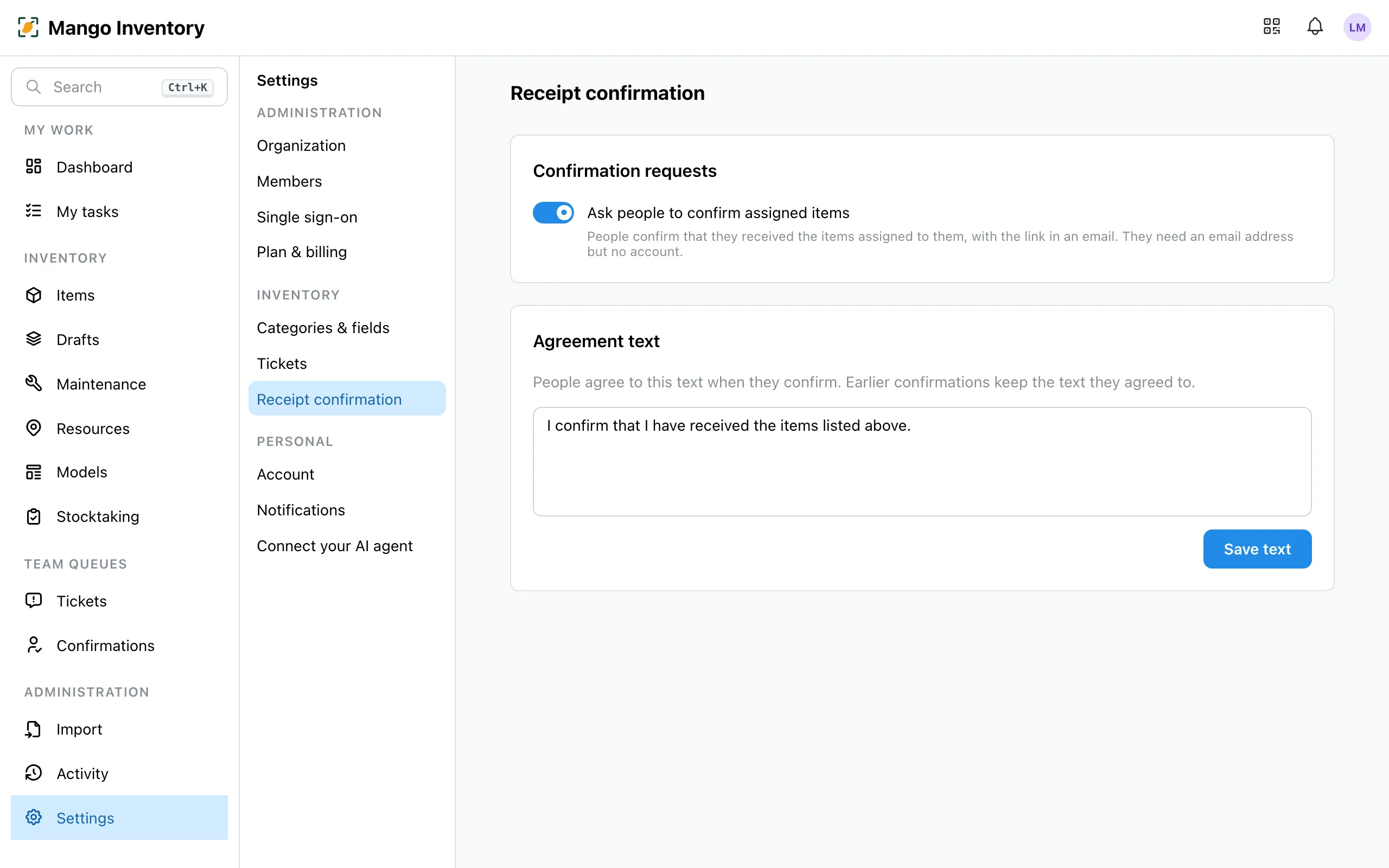
Under Settings → Receipt confirmation, switch on “Ask people to confirm assigned items” (owner role).
-
Optionally add an agreement text that the person agrees to when she confirms. “Use example text” suggests: “I confirm that I have received the items listed above.”
-
Optionally set a category to always ask when assigned: “Ask for confirmation when assigned” (Settings → Categories & fields). Sub-categories follow the rule. That way the box is already ticked for laptops and radios, but not for cables.
Asking for confirmation when you assign
Section titled “Asking for confirmation when you assign”-
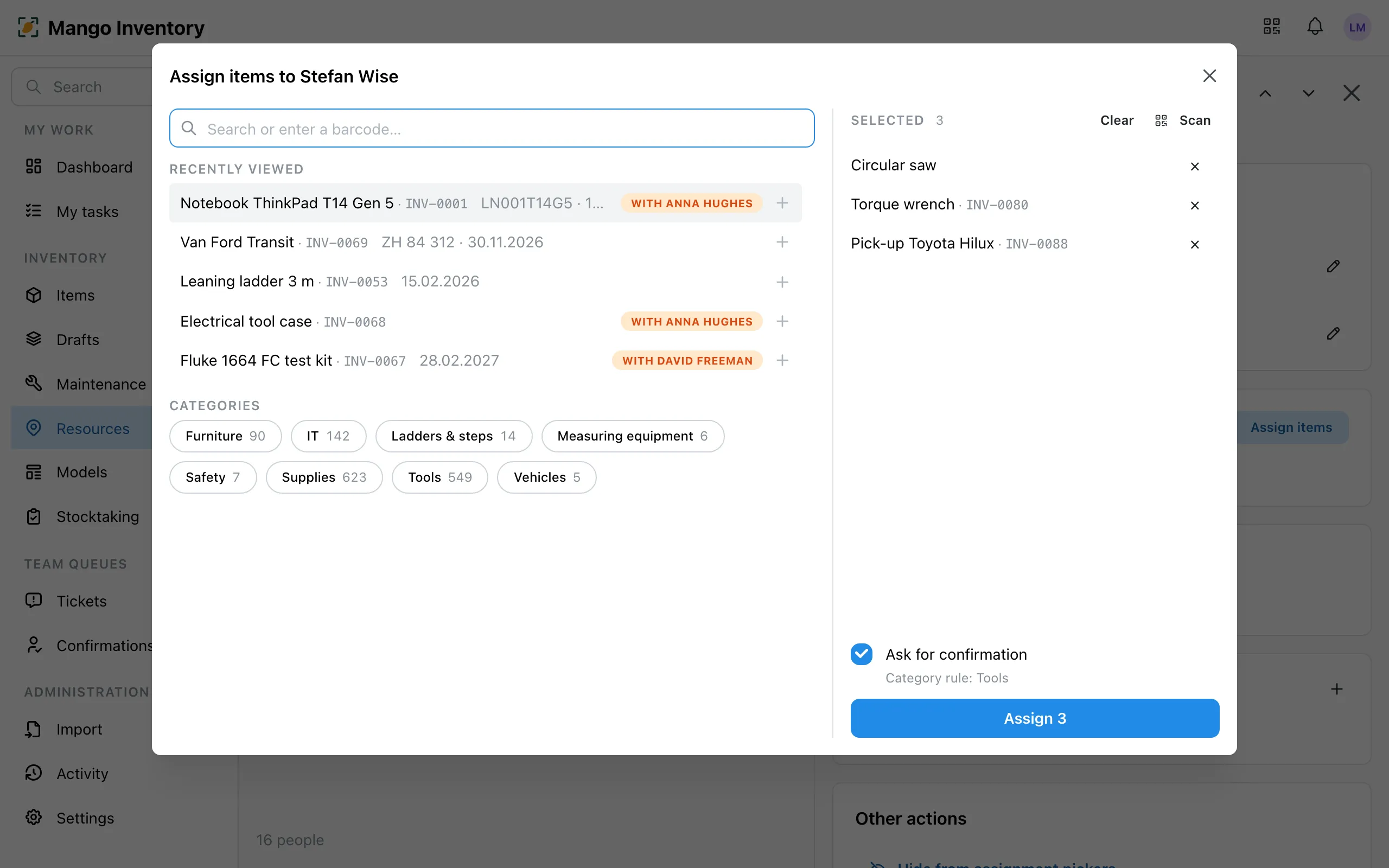
Assign items as usual — one at a time with “Assign”, or several at once on the person’s page with “Assign items”.
-
Tick “Ask for confirmation”. If the category has a rule, it is already ticked.
-
The email goes out by itself once nothing has been added for 15 minutes, at the latest after an hour — so several items you assign one after the other end up in a single email. If it’s urgent, pick “Send now” in the message after assigning.
Items the person already has — for example when you introduce receipt confirmation: on her page, “Ask to confirm” asks about what she already holds and hasn’t confirmed yet; “Send by email” sends the request right away.
Following up
Section titled “Following up”- Reminders go out by themselves after 3 and after 7 days.
- A task for you: if a request is still open after 7 days or a problem was reported, My tasks shows the row “Confirmations need attention”.
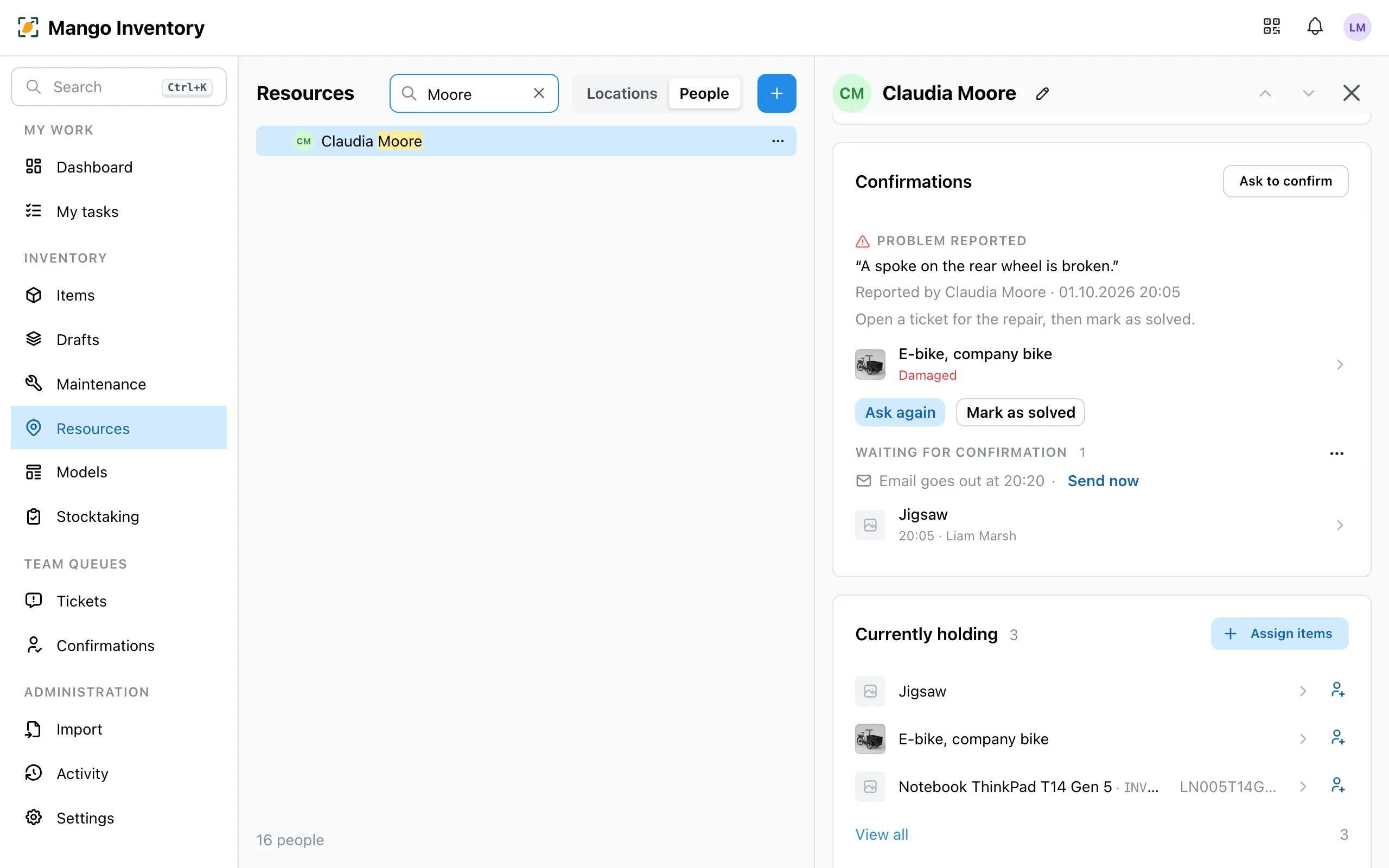
- On the person’s page, the “Confirmations” card shows what is still waiting, reported problems and past requests. For a problem: “Ask again” once you have fixed the assignment, or “Mark as solved”, for example when a repair ticket is open. To cancel a request, use the ”…” menu.
- The “Confirmations” overview (under Team queues) shows every request in the organization, filtered by Unconfirmed, Problem reported, No email address, Confirmed or All statuses.
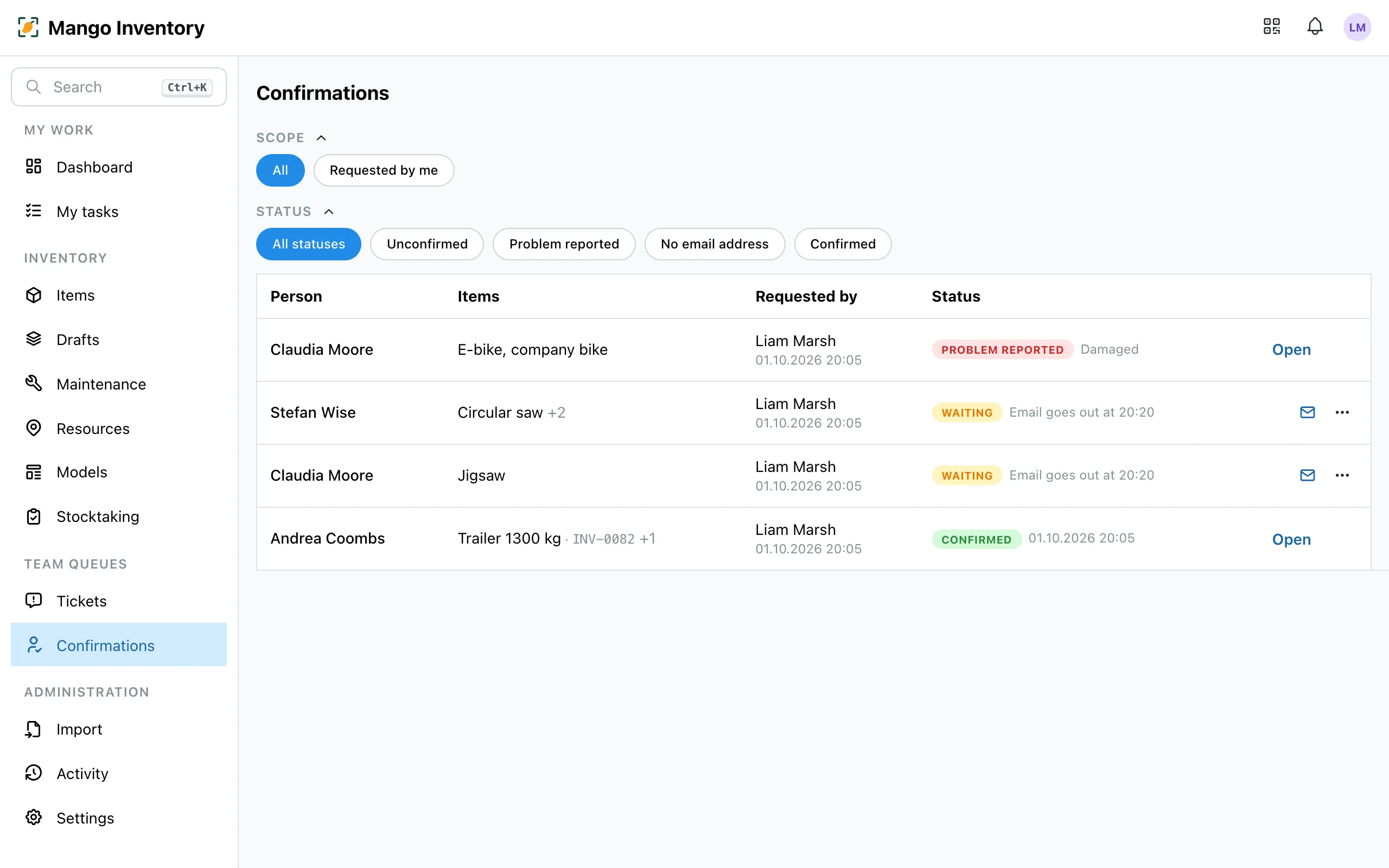
The record
Section titled “The record”A click on a past request opens the receipt confirmation: who confirmed, when (date and time), which email address the link went to, the items, the agreement text as the person saw it, and the whole sequence from the request to the confirmation.
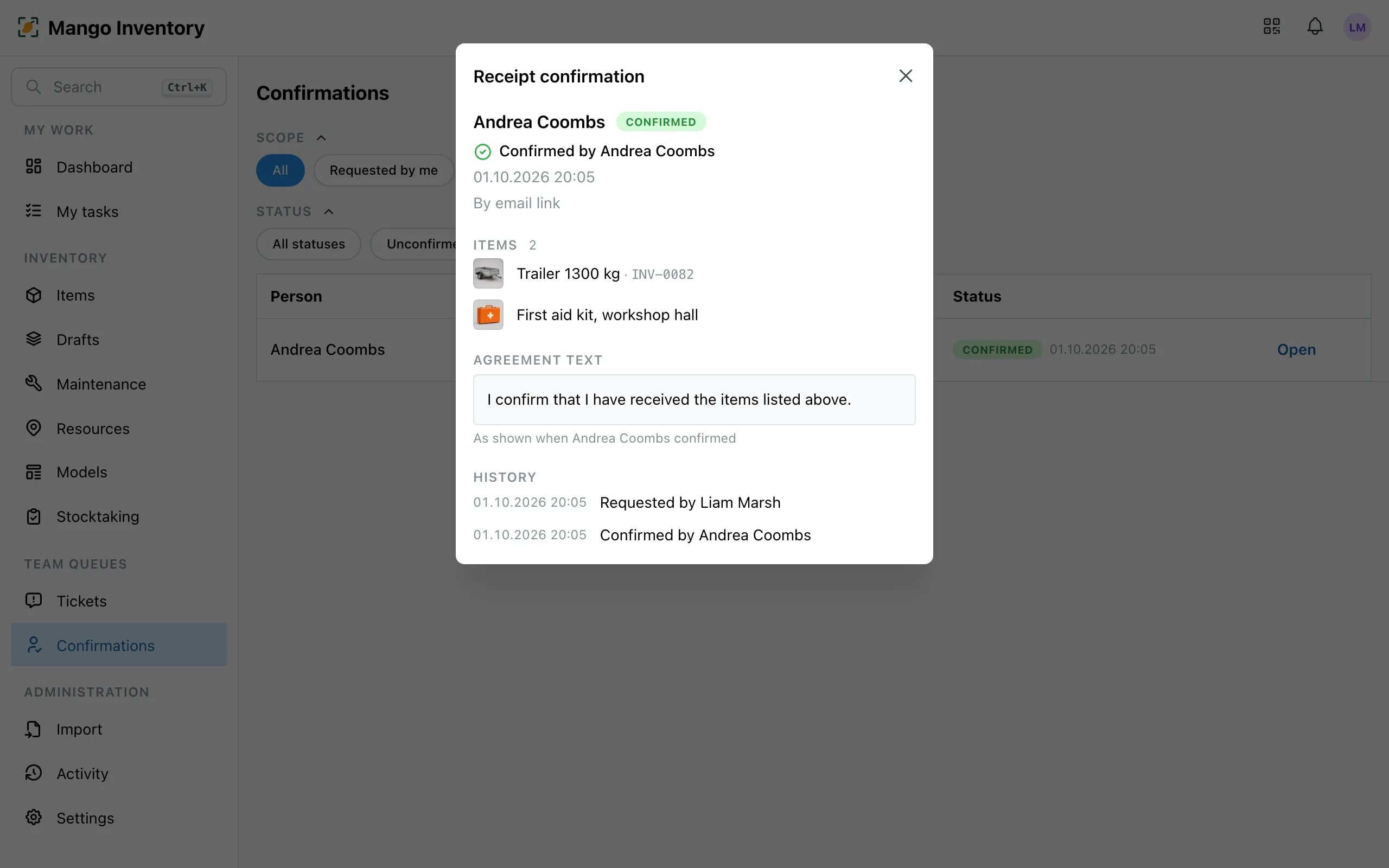
On the item itself, “Confirmed …” with the date shows next to the person; a click opens the same record. The item’s activity shows “Confirmed by …”. More under History & records.
Good to know
Section titled “Good to know”- An email address is enough: the person needs an address, but no account. If it’s missing, Mango tells you when you assign. Add the address on the person’s page and ask there with “Ask to confirm”.
- In the web app: the box appears when you assign in the web app. For items assigned in the mobile app, by mass edit, through an order or by import, use “Ask to confirm” on the person’s page.
- One open request per person: whatever you assign on top with the box ticked, or ask for later, joins the same request — the person confirms everything at once.
Did you get a request?
Section titled “Did you get a request?”Someone in your organization asks you to confirm that you have the items listed. Open the link in the email, check the list and click “Confirm” — you don’t need an account. If something is wrong, pick “Something is wrong” or reply to the email.