Quantity items
Not everything has a serial number. Batteries, gloves, barriers or printer paper you capture as a quantity: one quantity item with a stock level, instead of 200 single items. That fits consumables that get used up as well as material that goes out and comes back.
Included from the Pro plan — pricing.
At a glance
Section titled “At a glance”- One record, many pieces — “Quantity” instead of “Single item” when capturing.
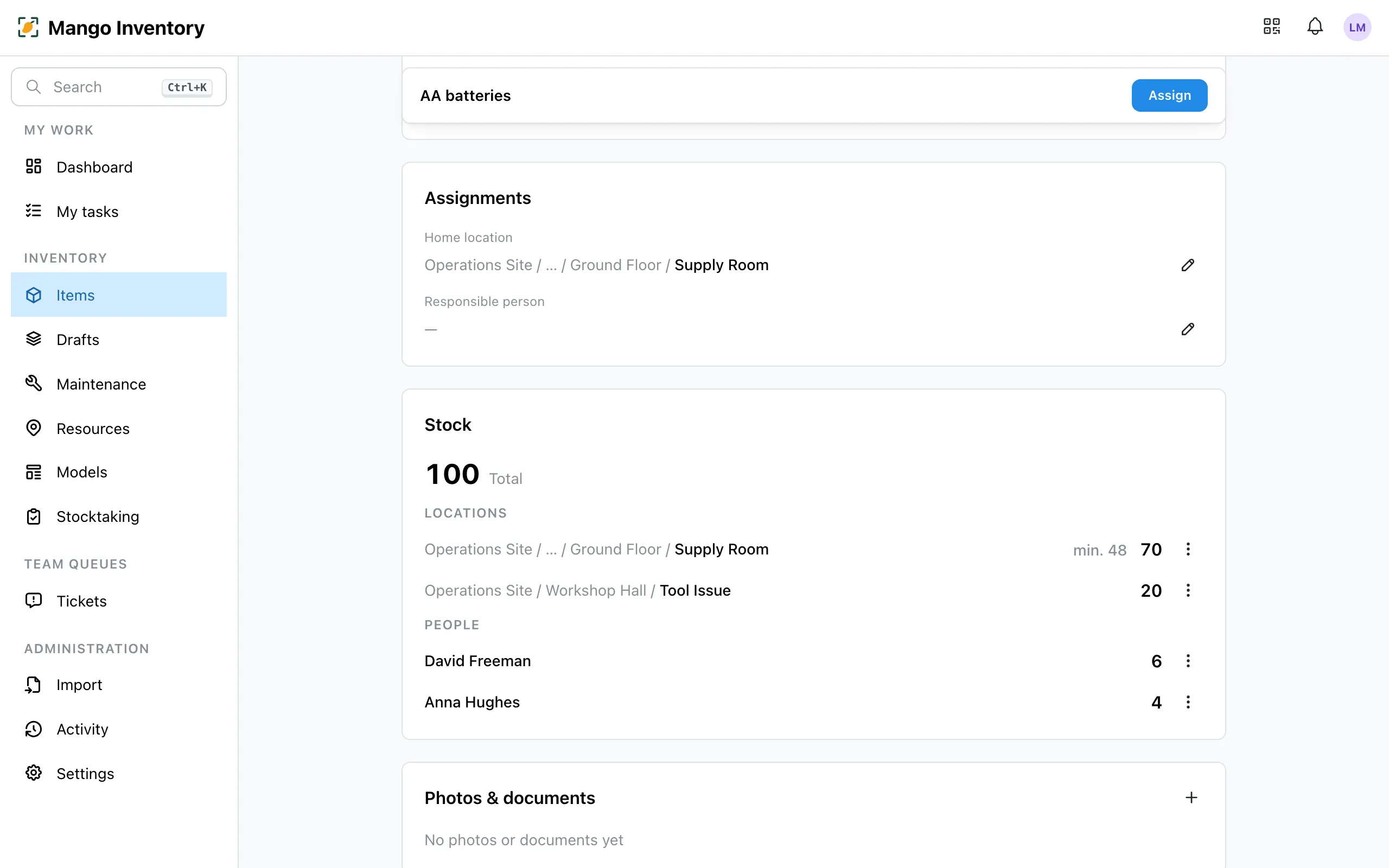
- Stock per place — you see how much is in the storeroom, in the vehicle or with a person.
- Check out part amounts — “3 of 35 available in Supply room”; the rest stays visible in the store.
- Record usage — what’s used up, you book out.
- Reorder before the shelf is empty — a min. stock per place reminds you in good time.
Capturing
Section titled “Capturing”For a new item, choose “Quantity” under “Tracking” and enter the starting stock. Item models only apply to single items.
Checking out and taking back
Section titled “Checking out and taking back”For quantity items, “Assign” first asks for the target — a person or a location — and then for the amount. The detail page then shows where the stock sits and which people hold how much. From there it goes back (“Return to location”) or into usage (“Mark used”). More on checking out under Check-out & locations.
Restocking quantity items
Section titled “Restocking quantity items”Set a min. stock per location. When the available quantity drops below it, a task appears under My tasks — for the person responsible for the location and for the people responsible for orders. That way the reminder comes before the shelf is empty. For many items at once, set the min. stock with mass edit — for stock kept in one place.
Counting
Section titled “Counting”At stocktaking you count quantity items per location.