
Mobile app
Everything that happens at the device itself — capturing, looking things up, checking out, inspecting, counting — is fastest with your phone in hand. The app is available for iOS and Android.


At a glance
Section titled “At a glance”- Scan, tap, open — photos, documents, location, history.
- Capture through the building — one photo per item, the AI suggests name and details. You go through it later, at your own pace.
- Check out by scan — pick the target, scan item after item, assign everything at once.
- Inspect in a round — work through due inspections room by room, record defects on the spot.
- Count the stocktake — your own locations in walking order, every scan ticks off.
- For the whole team — everyone scans, reports and checks out with their own phone. Push notifications keep them up to date.
The five tabs
Section titled “The five tabs”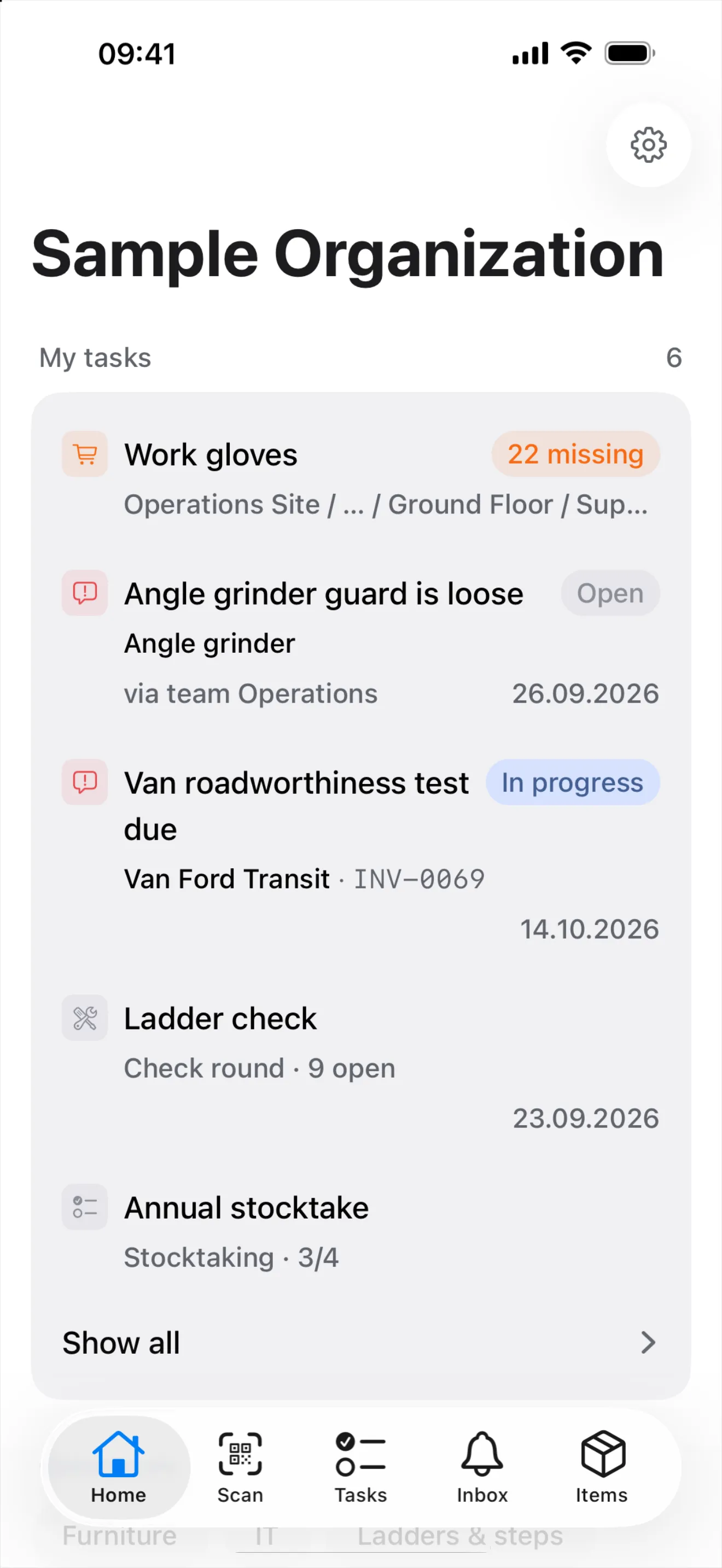
- Home — your overview, with locations and people.
- Scan — read QR labels and barcodes. Every hit shows up in the list under the camera; tapping it opens it.
- Tasks — the same list as My tasks at the computer: tickets, check rounds, stocktaking, orders.
- Inbox — your notifications.
- Items — all items, with search and filters.
What you do with it
Section titled “What you do with it”- Capture: “New item” in the “Scan” tab starts a photo series (from the Manager role). Every photo is saved right away; a barcode in the picture is linked to the item straight away. Afterwards you go through your captures at your own pace (Drafts).
- Look up: the detail page shows photos, documents (e.g. manuals as PDF), location, barcodes and history. Attach new barcodes with the camera.
- Check out: assign straight from the item, or many at once by scan.
- Pack containers: “Add by scanning” scans piece by piece into a toolbox.
- Report and order: tickets and orders right on the go, pick items by scan or search.
- Count: in a stocktake the app guides you through your locations; “Scan item” ticks off.
- As a scanner for the computer: pair your phone with the computer — every scan shows up there right away (more).
When web, when app?
Section titled “When web, when app?”| Task | Best with |
|---|---|
| Capture, check out, inspect, count at the shelf | Mobile app |
| Import Excel, mass edit, settings | Web app at the computer |
| Report a defect | Mobile app — or scan the QR label, no app at all |