
Users & roles
Nobody wants 40 new passwords. Your team signs in with the Microsoft or Google account it already has. You invite the people — or Mango takes them over automatically from your directory.
At a glance
Section titled “At a glance”- Invite by email or link — you can also share the invite link in a chat.
- Four roles — from the owner to the person who only looks.
- Teams — give work to a team instead of a person; whoever has time takes it over.
- Sign in with Microsoft or Google — no new password.
- Automatically from the directory — Microsoft Entra or Google Workspace: whoever joins is in; whoever leaves is out.
- Whoever leaves hands over cleanly — beforehand you see what the person still has; open work goes to the default assignee.
Inviting and roles
Section titled “Inviting and roles”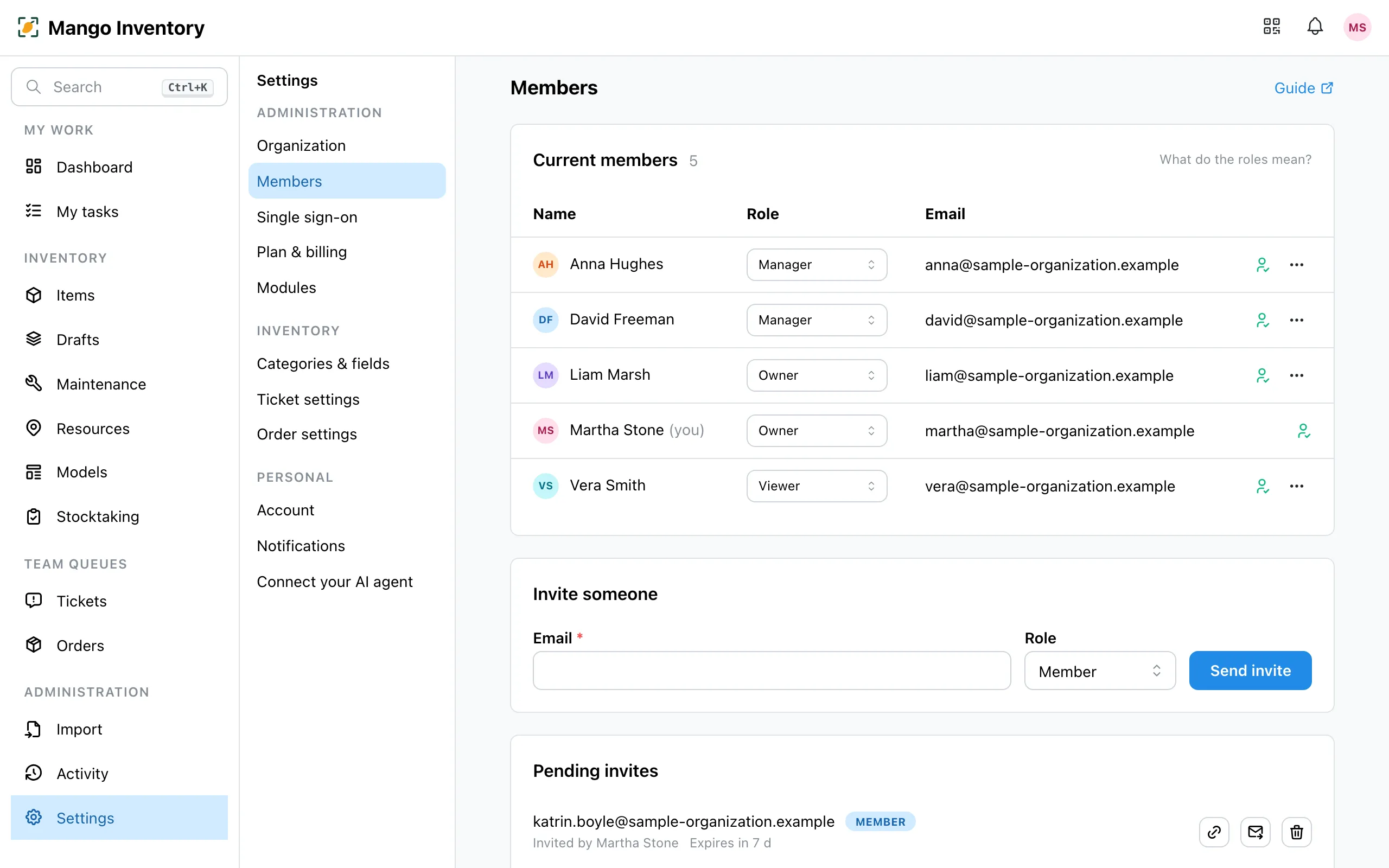
Under Settings → Members you invite people by email and pick the role:
- Owner — may do everything, including users and settings.
- Manager — edits the whole inventory.
- Member — scans, reports tickets and creates orders.
- Viewer — sees everything, changes nothing.
Roles and responsibilities
Section titled “Roles and responsibilities”The role decides what someone may do. Who takes care of tickets and orders you set separately, under Settings → Ticket settings and Order settings. That way the caretaker can be a Member and still receive all defects. The full overview is under Who gets which work?.
Under Settings → Members, “New team” lets you form groups such as “Facilities” or “IT”. When a ticket or an order goes to a team, all members see the task under My tasks and can take it over. That way work keeps moving, even when someone is on holiday.
Signing in with Microsoft or Google
Section titled “Signing in with Microsoft or Google”The sign-in page offers “Continue with Microsoft” and “Continue with Google”. Signing in alone does not open an organization yet: only people who are invited or join through directory sync belong to it.
For your IT: approving Microsoft sign-in for everyone
Section titled “For your IT: approving Microsoft sign-in for everyone”On the first sign-in, Microsoft asks each person once for consent. If your organization restricts this, your Microsoft administration grants consent once for everyone, with this link:
https://login.microsoftonline.com/organizations/adminconsent?client_id=f0e8a412-8532-4ac9-b8e9-417df164de8b&redirect_uri=https%3A%2F%2Fapp.mangoinventory.com%2FMango Inventory only reads name and email address — no files, emails or calendars.
Automatically from the directory
Section titled “Automatically from the directory”With Microsoft Entra or Google Workspace, your people join automatically and leave automatically — see Directory sync (from the Premium plan).
When someone leaves
Section titled “When someone leaves”Owners remove a person through the menu next to their role. Beforehand, Mango shows what the person still has. Their items go back to their home location, their open tickets and orders to the default assignee. The profile is archived, not deleted: who had and reported what stays traceable.
Your account and your language
Section titled “Your account and your language”- Confirm your email — after signing up you get a confirmation email. You keep working right away; a note in the app reminds you.
- Password: change it under Settings → Account — Mango sends you a link by email. There you also see whether your email address is confirmed.
- Language — the app is available in German, English, French, Italian and Spanish. Every person picks their own language; the organization sets the default language under Settings → Organization.